

You are halfway through a movie and the dreaded network disconnected message pops up again. If you keep asking why does my tv keep disconnecting from wifi, you are not alone. It is one of the most common smart TV complaints in the US, and it affects every brand from Samsung and LG to Roku, Vizio and TCL. The good news is that in most cases the cause is simple, like a weak signal, a tired router or a setting that needs a reset. This guide walks you through 9 fixes in order, from the 30 second restart to the permanent wired solution, so you can get back to streaming without the drops.
Why Does My TV Keep Disconnecting From WiFi? The Most Common Causes
Before fixing anything, it helps to know what usually goes wrong. In nine out of ten cases, one of these culprits is behind the drops:
- Weak WiFi signal reaching the TV, often because the router sits too far away or behind walls and furniture
- Interference from microwaves, baby monitors, Bluetooth speakers and neighboring networks
- An overloaded router with too many phones, laptops, cameras and smart home gadgets online at once
- Outdated TV software with a bug that breaks the wireless connection
- A router that needs a firmware update or is simply too old for modern streaming demands
- Network settings on the TV that got corrupted after an update, including saved passwords
Knowing which one sounds like your home makes the fixes below much faster, so skim the list and start with the section that fits.
Quick Fixes to Try First
1. Restart Your TV and Your Router
This is the classic fix because it works surprisingly often. Unplug your TV from the wall outlet and wait a full 30 seconds. Do the same with your router and modem if they are separate boxes.
Plug the router back in first and give it two minutes to fully boot up and reconnect to your internet provider. Then plug the TV back in and reconnect to WiFi. A fresh restart clears temporary glitches in the TV wireless radio and the router memory, and it resolves a large share of random disconnects.
For a deeper reset on many smart TVs, use the restart option in the settings menu instead of just pressing the power button, since the power button often puts the TV into standby mode instead of a full reboot.
2. Check Whether Other Devices Drop Too
Open a streaming app on your phone while connected to the same WiFi network. If your phone also loses connection or buffers at the same time, the problem sits with your router or internet line, not the TV. In that case, jump to the router section below. If only the TV drops, keep working through the TV specific fixes.
Strengthen the Signal Between Your Router and TV
3. Move the Router to a Better Spot
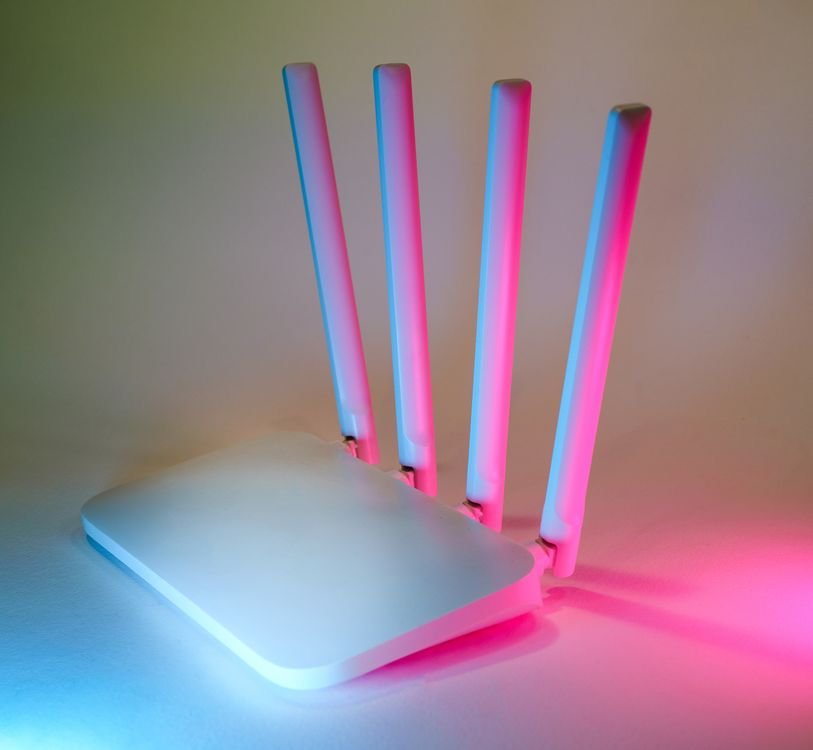
WiFi signals weaken with distance and die behind thick walls, metal appliances and mirrors. Many people hide the router behind the TV or inside a cabinet, which is one of the worst spots for it.
Place the router out in the open, ideally five to seven feet off the floor and roughly central in your home. Keep it at least three feet away from the microwave, since microwaves blast interference on the same 2.4GHz frequency your TV may use.
Even moving the router a few feet can turn an unstable TV connection into a solid one. If the TV is on a different floor, try to get the router as close to directly below or above it as you can.
4. Cut Out Interference and Overload
Your TV competes for airtime with every connected device in the house. Baby monitors, Bluetooth speakers, cordless phones and even a neighbor strong network can crowd the WiFi channels and knock a TV offline.
Try turning off nearby Bluetooth devices temporarily to see if the drops stop. If your router lets you change the WiFi channel in its admin panel, switch to a less crowded one. Many routers have an auto channel option that picks the quietest channel on its own.
Also count your connected devices. A household with 4K streams running in two rooms plus video calls, gaming and a dozen smart home gadgets can overwhelm an older router. If streaming keeps stuttering even after these fixes, check how much bandwidth your devices are using to spot the hog.
5. Switch to the 2.4GHz Band for Better Range
Most modern routers broadcast two networks, a 2.4GHz band and a 5GHz band. The 5GHz band is faster but its range is short and it struggles through walls. The 2.4GHz band travels much farther and holds a connection better at distance.
If your TV sits far from the router, connect it to the 2.4GHz network instead. You may see slightly lower top speeds, but a stable slower connection beats a fast one that keeps dropping.
Fix the Settings on Your TV

6. Forget the Network and Reconnect
Corrupted saved network settings are a very common cause, especially after a TV software update. Go to Settings, then Network or WiFi, select your network and choose Forget. Then restart the TV from the settings menu.
After the restart, connect to your WiFi again and enter the password carefully. This forces the TV to build a fresh connection profile and fixes a surprising number of cases where the TV used to work and now keeps dropping.
7. Update Your TV Software
TV makers regularly release software updates that fix wireless bugs. On Samsung TVs look under Settings, then Support, then Software Update. On LG TVs check Settings, then All Settings, then General, then About This TV. On Roku TVs go to Settings, then System, then System Update.
Install any available update, then restart the TV. If you want to be cautious, check community forums for your exact model first to confirm the update is stable before you install it.
8. Change the DNS Servers
Sometimes the TV stays connected to WiFi but apps fail because name lookups stall. Switching to public DNS servers can help. In your TV network settings, change the DNS to manual and enter 8.8.8.8 as the primary and 8.8.4.4 as the secondary. These are Google public DNS servers and they are free to use.
If you prefer, the Cloudflare servers at 1.1.1.1 and 1.0.0.1 work just as well. Save the setting and restart the TV.
9. Go Wired With an Ethernet Cable

A wired connection is the single most reliable fix for a TV that keeps disconnecting from WiFi. Ethernet eliminates interference, walls and wireless congestion in one move, and it usually delivers faster and more consistent speeds for 4K streaming.
If your router sits near the TV, run a Cat6 ethernet cable directly from a LAN port on the router to the ethernet port on the back of the TV. Then switch the TV network setting from wireless to wired. Cables cost under 15 dollars at most US retailers.
If running a cable across the room is not practical, a powerline adapter that sends the network signal through your home electrical wiring is a solid middle ground, and it still beats WiFi for stability.
When the Router Is the Real Problem
If every device in the house drops, or your router is more than five years old, the router itself may be the weak link. Log in to the router admin panel and install any firmware update the maker offers. Old firmware is a frequent cause of random disconnects.
Routers also wear out. If yours came free from your internet provider years ago, consider upgrading to a modern WiFi 6 router in the 120 to 300 dollar range. For larger homes, a mesh WiFi system with two or three nodes spreads a strong signal to every room and ends dead zones for good.
Protect your gear too. Power spikes can corrupt router memory and cause flaky behavior, so plug your TV and router into a surge protector rather than straight into the wall.
As a temporary backup, a portable hotspot can keep a streaming stick online when the home network misbehaves. Our Ryoko Pro review looks at one popular travel friendly option.
When to Call Your Internet Provider or the TV Maker
Call your internet provider if speed tests on a wired computer show far less than you pay for, or if the connection drops for every device at the same times each day. That points to a line or modem issue that only they can fix.
Contact the TV maker support if the TV drops WiFi but every other device stays rock solid, and you have already tried the forget, update and reset steps. That can signal a faulty wireless module inside the TV, which may be covered under warranty.
The Bottom Line
When your TV keeps disconnecting from WiFi, start simple. Restart both the TV and the router, check whether other devices drop too, and improve the signal path before you touch any settings. In most US homes, one of those three steps ends the problem.
If the drops continue, forget the network and reconnect, update the TV software and try new DNS servers. And if you want the problem gone for good, run an ethernet cable. A wired TV simply does not drop. Work through these fixes in order and your next movie night should stream without a single interruption.
Frequently Asked Questions
Why does my TV disconnect from WiFi when I turn it off?
Many smart TVs drop the wireless connection in standby to save power, then fail to reconnect cleanly on wake. Disable any eco or quick start power mode in the TV settings, or enable the stay connected in standby option if your brand offers it.
Is a wired connection really better than WiFi for a smart TV?
Yes. Ethernet gives you a stable connection with no interference and more consistent speed, which matters most for 4K streaming. If you can run a cable, it is the most reliable fix on this list.
Why does my TV say connected to WiFi but apps will not load?
The WiFi link is up but the TV cannot reach the internet, often a DNS or router issue. Try changing the DNS servers to 8.8.8.8 as described above, then restart both the TV and the router.
Can an old router cause my TV to keep disconnecting?
Absolutely. Routers older than about five years often struggle with the number of connected devices in a modern home and with newer WiFi standards. A firmware update sometimes helps, but an upgrade to a current WiFi 6 model usually ends the drops.
Why does my TV forget the WiFi password after an update?
Some TV software updates wipe saved network profiles or corrupt them. Forgetting the network manually and reconnecting from scratch, as in fix 6 above, usually restores normal behavior.
