
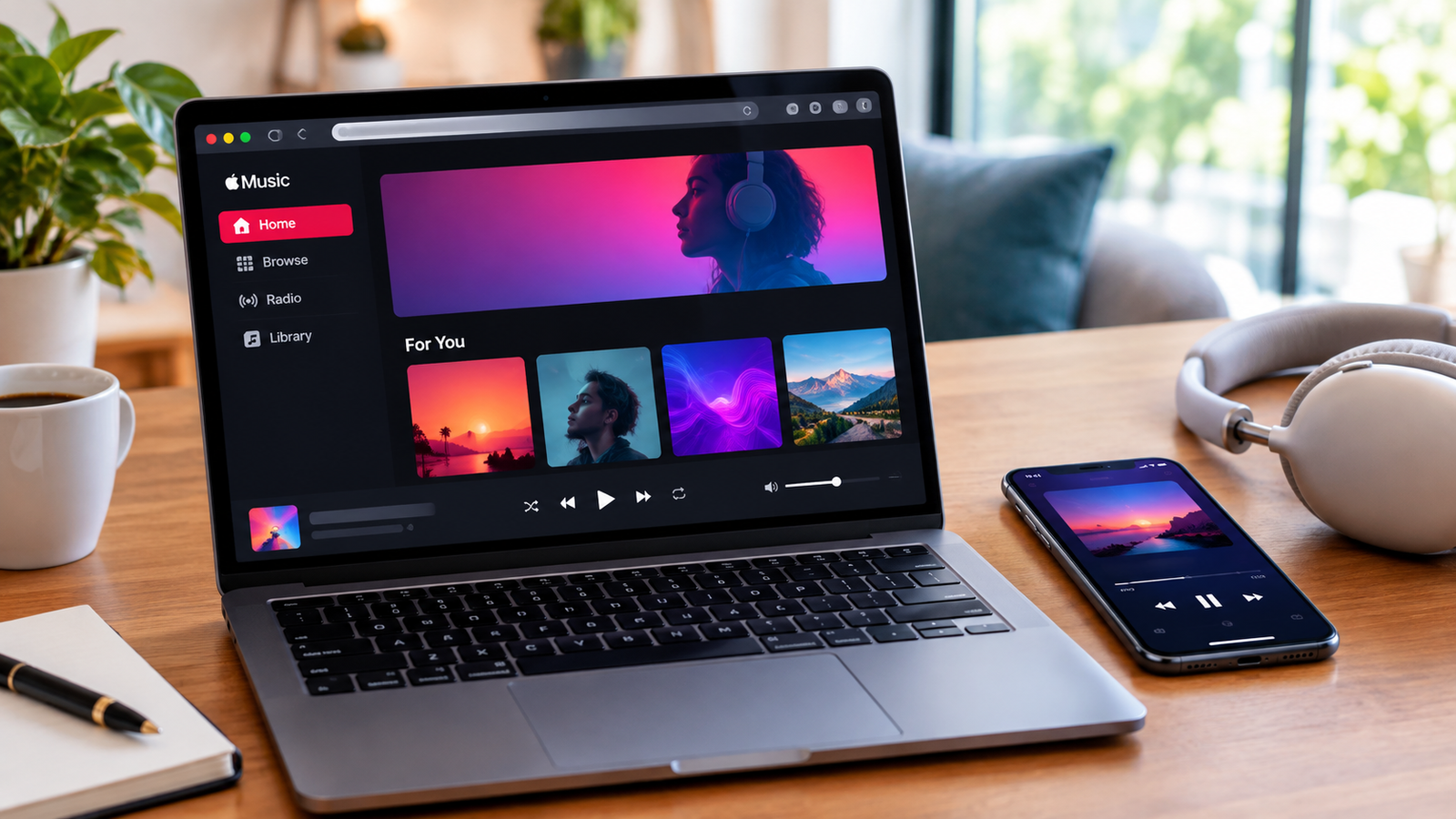
If you have ever typed apple music web into a search bar, you were probably trying to solve one simple problem: you want to listen to your music, but you do not have the app in front of you. Maybe you are on a work laptop, a Chromebook, or a friend’s computer, and installing software just is not an option.
The good news is that Apple built a solution for exactly this situation. The Apple Music web player lets you stream your entire library, playlists, and the full catalog of songs directly from a browser tab, no installation required.
This guide walks through everything you need to know about using Apple Music on the web: how to get started, what features you get, how the audio quality compares to the native apps, and how to fix the most common issues people run into. By the end, you will know whether the web player fits your listening habits and how to get the most out of it.
What Is Apple Music Web Player
Apple Music web player is the browser based version of Apple’s streaming service, accessible at music.apple.com. It gives subscribers a way to browse, search, and play music without downloading the Music app for macOS, Windows, iOS, or Android.
The service first appeared in a limited beta form back in 2019, mainly as a way for Safari users to preview songs and manage their libraries. Over time, Apple expanded it into a fuller experience that closely mirrors what you see in the native apps, including personalized recommendations, curated playlists, radio stations, and music videos.
Today, the web player is treated as a legitimate alternative to the app rather than a stripped down backup option. It is particularly useful for anyone who splits their time between Apple devices and non Apple devices, since it removes the need to install anything just to hear a song.
Who Actually Uses It
The people who benefit most from Apple Music web player tend to fall into a few groups. Windows and Android users who subscribe to Apple Music but do not want a dedicated desktop app installed are one obvious group. Students and employees using shared or locked down computers are another, since many workplaces and schools restrict what software can be installed.
There is also a smaller but growing group of users comparing Apple Music’s browser experience to Spotify’s own web player, since both services now offer surprisingly similar functionality in the browser.
How to Access Apple Music on the Web
Getting started takes less time than downloading and installing an app, which is part of the appeal.
- Open any modern browser and go to music.apple.com.
- Click Sign In in the top right corner.
- Enter your Apple ID and password, and complete two factor authentication if prompted.
- Once signed in, your library, playlists, and recommendations will load automatically.
That is genuinely the entire process. There is no separate account system for the web player, so if you already subscribe to Apple Music on your phone or computer, your login credentials carry over without any extra setup.
Signing In With Your Apple ID
Your Apple ID is the key to everything here. Since Apple Music is tied to your subscription rather than a specific device, signing in on the web instantly restores your saved albums, liked songs, and custom playlists.
If you use two factor authentication, which Apple strongly recommends, you will need access to a trusted device to approve the sign in request. This adds a small amount of friction the first time, but it protects your account from unauthorized access, which matters more on a public or shared computer.
Browsing Without a Subscription
You do not necessarily need an active subscription just to look around. Apple allows non subscribers to preview parts of the catalog, browse curated playlists, and get a sense of what the service offers. Full length playback, offline features, and personalized library management, however, all require a paid Apple Music plan.
Key Features of the Web Player
Apple has invested real effort into making the browser version feel like a genuine extension of the app rather than an afterthought.
Library and Playlist Access
Every album, song, and playlist you have saved on your phone or desktop app shows up instantly in the browser. You can create new playlists, add songs to existing ones, and organize your library the same way you would in the native app.
One small but useful detail is the Made For You section, which surfaces personalized recommendations based on your listening history. This works identically to the app version, so your taste profile is never siloed between platforms.
Audio Quality on the Web
This is one area where expectations need to be set correctly. The web player streams at a lower bitrate than the desktop and mobile apps, generally using standard AAC encoding rather than the Apple Lossless Audio Codec or Hi Res Lossless formats available elsewhere.
In practical terms, this means casual listening sounds perfectly good through laptop speakers or basic headphones, but audiophiles using high end DACs or studio monitors will notice a difference compared to the desktop app. If audio fidelity is your top priority, the native app remains the better choice.
Sharing Music From the Browser
Sharing a song, album, or playlist from the web player is straightforward. Click the more options icon next to any item and you will find options to copy a direct link, copy embeddable HTML code, or share directly through social platforms.
When someone clicks a link you share, it opens Apple Music on the web automatically, letting them preview or play the content even if they do not have the app installed. This makes the web player genuinely useful as a distribution tool, not just a personal listening interface.
Apple Music Web Player vs Desktop and Mobile Apps
Choosing between the web player and the native apps really comes down to what you value most in a given moment.
| Feature | Web Player | Desktop App | Mobile App |
|---|---|---|---|
| Installation required | No | Yes | Yes |
| Offline downloads | No | Yes | Yes |
| Lossless or Hi Res Audio | No | Yes | Yes |
| Smart Playlists | No | Yes | Yes |
| Spatial Audio | Limited | Yes | Yes |
| Cross device sync | Yes | Yes | Yes |
| Works on any OS with a browser | Yes | No | No |
The web player wins on flexibility and convenience. The apps win on audio quality, offline access, and advanced library tools like Smart Playlists. Many people end up using both, relying on the web version when they are away from their primary device and switching to the app when quality and offline access matter more.
Browser Compatibility and System Requirements
Apple Music web player works across all major modern browsers, including Chrome, Firefox, Edge, and Safari. There is no need for a specific operating system, which is exactly why it appeals to Windows, Linux, and Chromebook users who cannot install the native Apple Music app.
A few practical requirements are worth knowing before you dive in.
- A stable wireless or wired internet connection, since the player streams rather than downloads.
- JavaScript enabled in your browser, since the interface relies on it heavily.
- An updated browser version, since older versions sometimes struggle with playback or account syncing.
Mobile browsers on phones and tablets also support the web player, so even without installing the Apple Music app on Android, you can still stream through Chrome or Samsung Internet.
Common Problems and How to Fix Them
Most issues people report with the web player come down to a handful of predictable causes, and nearly all of them have simple fixes.
Playback Will Not Start
If clicking play does nothing, the most common culprits are ad blockers or privacy extensions interfering with the page’s scripts. Try disabling extensions temporarily or opening the site in an incognito window to confirm this is the issue.
Audio Cuts Out When You Close the Tab
By default, closing the browser tab stops playback entirely. If you want music to keep playing while you work in other tabs, simply keep the Apple Music tab open in the background rather than closing it, or use the browser’s built in tab pinning feature to keep it accessible.
Sign In Loops or Errors
Repeated sign in prompts are often caused by outdated cookies or a browser cache that has not been cleared in a while. Clearing your browser cache and cookies for music.apple.com, then signing in again, resolves this in most cases.
Restricted Access on Work or School Networks
Some corporate and school networks block streaming domains by default. If the site will not load at all despite your internet connection working fine elsewhere, this is worth checking with your network administrator before assuming the problem is on Apple’s end.
Tips for a Better Experience
A few small habits make the web player noticeably smoother to use day to day.
- Use keyboard shortcuts like the spacebar for play and pause, and arrow keys to skip tracks, which saves time compared to clicking through the interface.
- Pin the browser tab so you can control playback without losing your place in other tabs.
- Sign out fully when using a shared or public computer, rather than simply closing the tab, to protect your account and library from unauthorized access.
- Bookmark music.apple.com directly for one click access instead of searching for it each time.
Is Apple Music Web Player Worth Using
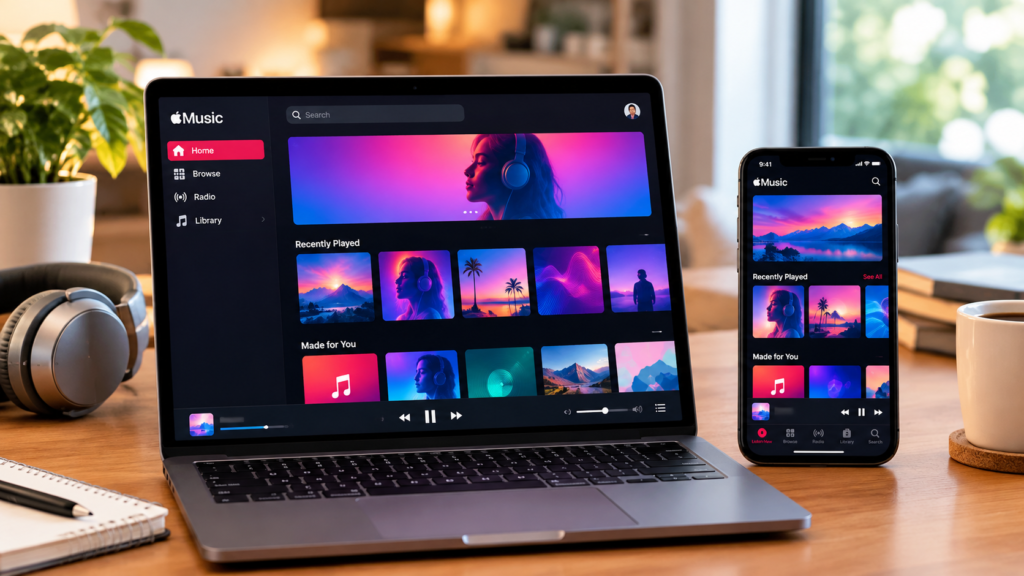
For most people, yes. If your priority is convenience, flexibility across devices, and quick access without installing software, the web player delivers on all three. It is not trying to replace the desktop or mobile app entirely, and it does not need to.
Think of it as a companion tool rather than a full substitute. Keep the native app for serious listening sessions at home, where audio quality and offline downloads matter, and lean on the web player whenever you are away from your main device or simply do not want another app taking up space on your computer.
Conclusion
Apple Music web player solves a real and common problem: the need to listen to your music library without being tied to a specific app or device. It offers full access to your playlists, personalized recommendations, and the entire Apple Music catalog, all from a standard browser tab.
The trade offs are minor for most listeners. Slightly lower audio quality and the absence of offline downloads are the main limitations, and neither one matters much if you are just trying to get through a work day or listen at a public computer. Signing in takes seconds, sharing music is simple, and the interface closely matches what you already know from the app.
If you have been putting off trying it because you assumed it would feel like a downgraded experience, it is worth giving it a shot. For everyday, on the go listening, Apple Music web player earns its place right alongside the native apps.
Frequently Asked Questions
Does Apple Music have an official web player?
Yes. Apple offers a full web player at music.apple.com that lets subscribers stream music, manage playlists, and access their library directly from a browser, without installing any app.
Do I need a subscription to use Apple Music on the web?
You need an active Apple Music subscription to stream full songs and access your personal library. Without one, you can still browse and preview parts of the catalog.
Can I download songs for offline listening through the web player?
No. Offline downloads are only available through the desktop and mobile apps. The web player requires an active internet connection at all times.
Why does Apple Music sound different on the web compared to the app?
The web player streams at a lower bitrate using standard AAC encoding, while the desktop and mobile apps support Apple Lossless and Hi Res Lossless formats for higher audio fidelity.
Which browsers work best with Apple Music web player?
Chrome, Safari, Firefox, and Edge all support the web player reliably, as long as they are kept updated and JavaScript is enabled.
