
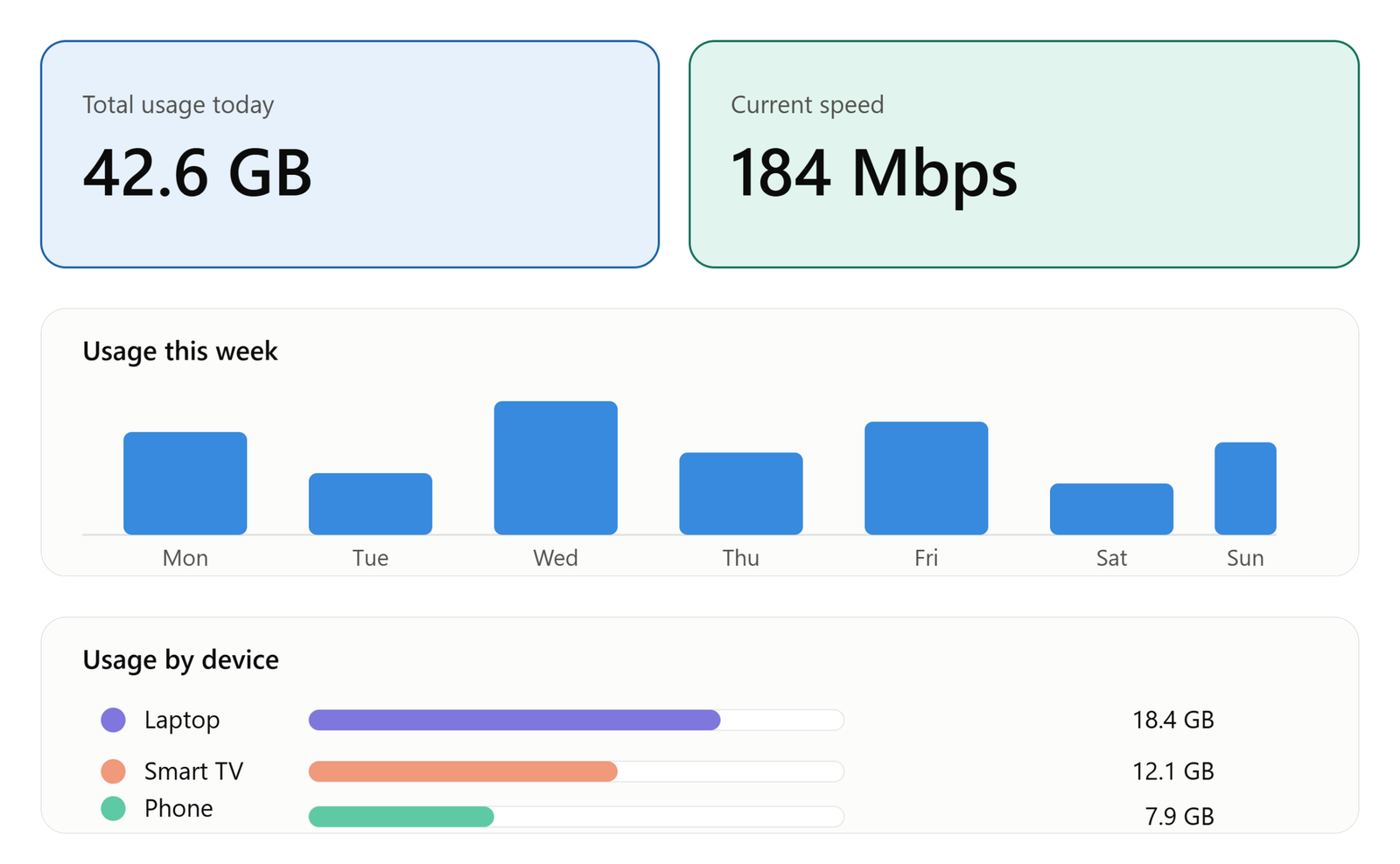
Your internet feels slow, your monthly data bill just went up, or you simply want to know where all that bandwidth is going. Whatever the reason, learning how to check bandwidth usage is one of the most useful skills you can pick up as a home user or an IT professional.
The good news is that you do not need expensive software to get started. Most operating systems, routers, and internet service providers already give you the tools to see exactly how much data you are using and which apps or devices are responsible.
In this guide, you will find clear instructions for checking bandwidth usage on Windows, macOS, iPhone, Android, and your home router. You will also learn what bandwidth actually means, what normal usage looks like, and when it makes sense to upgrade to dedicated monitoring software.
What Bandwidth Usage Actually Means
Bandwidth is the maximum amount of data that can travel across your internet connection in a given amount of time. It is usually measured in megabits per second, or Mbps.
Bandwidth usage, on the other hand, is how much of that available capacity you are actually consuming at any given moment. Think of bandwidth as the number of lanes on a highway and bandwidth usage as the number of cars actually driving on it.
It is easy to confuse bandwidth with internet speed, but they are not quite the same thing. Speed refers to how quickly data moves, while bandwidth refers to the total capacity available. A connection can have high bandwidth but still feel slow if something else is eating up that capacity, such as a large download running in the background or several devices streaming video at once.
Why You Should Monitor Your Bandwidth Regularly
Checking your bandwidth usage is not just for network administrators. There are practical reasons for almost anyone to keep an eye on it.
- Avoiding overage charges from internet service providers that enforce data caps
- Identifying which apps, devices, or family members are consuming the most data
- Spotting unusual spikes that could point to malware or unauthorized network access
- Diagnosing slow internet connections before calling your provider
- Deciding whether you actually need a faster or more expensive internet plan
Businesses have even more at stake. Slow bandwidth can delay client facing applications, disrupt video calls, and reduce overall productivity. For IT teams, regular bandwidth checks are the first step toward proper network monitoring and troubleshooting.
How to Check Bandwidth Usage on Windows
Windows has a built in way to check bandwidth usage without installing anything extra.
Using Task Manager
- Right click the Windows taskbar and select Task Manager, or press Ctrl, Shift, and Escape together.
- Click on the Performance tab.
- Select your active network adapter, such as Wi-Fi or Ethernet, from the left panel.
- You will see real time send and receive speeds along with a live graph of network activity.
This method gives you a quick snapshot but does not break usage down by application.
Using the Settings App
- Open Settings and go to Network and Internet.
- Click on Data Usage.
- Here you can view total usage over the past 30 days, broken down by individual app.
This is one of the most convenient ways to check bandwidth usage on Windows because it shows exactly which programs are consuming the most data, whether that is a browser, a game, or a cloud backup tool running quietly in the background.
Using Resource Monitor for More Detail
If you want a deeper look, type Resource Monitor into the Windows search bar and open the Network tab. This tool shows individual processes along with the exact amount of data each one is sending and receiving, which is helpful for pinpointing a specific bandwidth hog.
How to Check Bandwidth Usage on macOS
Mac users have a similarly straight forward built in option.
- Open Activity Monitor, which you can find through Spotlight search or in Applications, then Utilities.
- Click on the Network tab.
- You will see real time data being sent and received, along with a list of processes and how much bandwidth each one is using.
For a longer term view, macOS does not offer the same 30 day breakdown that Windows does, so many Mac users turn to third party apps like GlassWire or Little Snitch when they need historical data usage reports rather than just a live snapshot.
How to Check Bandwidth Usage on iPhone
Checking mobile data and Wi-Fi usage on an iPhone takes just a few taps.
- Open Settings and tap Cellular, or Mobile Data depending on your region.
- Scroll down to see data usage broken down by app for the current billing period.
- To check Wi-Fi usage specifically, scroll further to the Wi-Fi section under the same menu.
Keep in mind that iPhone tracks this data since the last time you reset the statistics, so if the numbers look off, scroll to the bottom of the Cellular menu and check when the counter was last reset.
How to Check Bandwidth Usage on Android
Android devices offer built in data monitoring tools as well, though the exact menu names can vary slightly by manufacturer.
- Open Settings and go to Network and Internet, or Connections on some devices.
- Tap Data Usage.
- You can view mobile data and Wi-Fi usage separately, along with a per app breakdown and the ability to set usage warnings or hard limits.
This is particularly useful for anyone on a limited mobile data plan, since Android lets you set an automatic cutoff once you hit a certain threshold, helping you avoid unexpected charges.
How to Check Bandwidth Usage Through Your Router
If you want to see bandwidth usage for your entire home network rather than a single device, your router is the best place to look.
- Find your router’s IP address, often printed on a sticker on the device itself, commonly something like 192.168.1.1 or 192.168.0.1.
- Type that address into a web browser and log in with your admin credentials.
- Look for a section labeled Traffic Statistics, Bandwidth Monitoring, or QoS, depending on your router brand.
Many modern routers show connected devices along with how much data each one has used, which makes it easy to spot a smart TV, gaming console, or guest device that is quietly consuming more than its fair share. Some routers also let you set bandwidth priorities so critical devices, like a work laptop, get preference over less important traffic.
How to Check Bandwidth Usage With Your Internet Service Provider
Many internet service providers offer their own usage dashboards through a customer portal or dedicated app. These tools often provide the most accurate figures since they measure usage exactly as your provider bills it, rather than an estimate from your own device or router.
Log into your provider’s account portal or app and look for a section labeled Usage, Data Meter, or Billing Details. This is especially worth checking if you are on a plan with a strict data cap, since it will show you exactly how close you are to any limit before charges apply.
Free and Paid Bandwidth Monitoring Tools Worth Considering
Built in tools are great for quick checks, but if you want ongoing monitoring with alerts, historical trends, and detailed breakdowns, dedicated software can be worth the investment.
- Free options like GlassWire offer visual graphs, alerts for unusual spikes, and a free tier that covers most home users.
- NetSpeedMonitor and similar lightweight tools sit quietly in your system tray and give you an at a glance view of current usage.
- Enterprise tools such as PRTG, SolarWinds, and ManageEngine NetFlow Analyzer are built for businesses that need to monitor bandwidth across dozens or hundreds of devices, often using protocols like SNMP and NetFlow to gather detailed traffic data.
- Router manufacturer apps, such as those from Netgear, TP-Link, or ASUS, sometimes include their own monitoring dashboards that sync directly with your hardware.
For most home users, the built in tools covered earlier will be more than enough. Dedicated software becomes valuable once you are managing multiple devices, a small business network, or a household with several heavy internet users.
Understanding Mbps, MBps, GB, and Data Caps
One source of confusion when checking bandwidth usage is the difference between similar looking units.
- Mbps stands for megabits per second and is typically used to describe internet plan speeds.
- MBps stands for megabytes per second and is used to describe file transfer or download speeds.
- There are 8 bits in a byte, so a 100 Mbps connection translates to roughly 12.5 MBps of actual download speed.
- GB, or gigabytes, is the unit most providers use to measure your monthly data cap, and it is worth remembering that 1 GB equals roughly 8 gigabits of transferred data.
Understanding these conversions helps you make sense of the numbers you see in Task Manager, your router dashboard, or your provider’s usage app, rather than assuming a low number always means a slow connection.
What to Do If Your Bandwidth Usage Is Too High
Once you have identified that your bandwidth usage is unusually high, the next step is figuring out why and fixing it.
Start by checking which app or device is responsible using the tools described above. Streaming services, cloud backups, and software updates are common culprits, especially when several run at the same time in the background.
If you notice usage from a device or IP address you do not recognize, it could indicate unauthorized access to your Wi-Fi network. In that case, change your Wi-Fi password immediately and consider enabling WPA3 encryption if your router supports it.
For businesses, persistent high bandwidth usage across the network might mean it is time to review your internet plan, segment guest traffic from business critical applications, or invest in proper network monitoring software that can flag issues before they affect productivity.
Final Thoughts
Knowing how to check bandwidth usage puts you back in control of your internet connection, whether you are trying to avoid overage fees, troubleshoot a slow connection, or simply understand where your data is going each month.
Start with the built in tools on your device or router since they cover most everyday needs without any extra cost. If you manage multiple devices or a business network, dedicated monitoring software can offer the deeper visibility and historical trends that built in tools cannot provide.
The key takeaway is simple. Regular bandwidth checks help you catch problems early, make smarter decisions about your internet plan, and keep your network running smoothly for everyone who relies on it.
Frequently Asked Questions
What is a normal amount of bandwidth usage for a household?
It depends heavily on the number of devices and activities involved. A household with a few people streaming video and browsing casually might use anywhere from 200 GB to 500 GB per month, while heavy gaming or 4K streaming households can easily exceed 1 TB.
Can I check bandwidth usage without installing any software?
Yes. Windows, macOS, iPhone, and Android all include built in tools that show data usage without needing a third party app, as covered earlier in this guide.
Why does my router show different usage numbers than my ISP?
Routers typically measure raw traffic through the network interface, while ISPs measure billed usage, which can be calculated slightly differently or reset on a different schedule.
Does checking bandwidth usage slow down my internet connection?
No. Checking usage through built in tools, router dashboards, or monitoring apps only reads existing traffic data and does not add meaningful load to your network.
How often should I check my bandwidth usage?
For most home users, a monthly check is enough, ideally timed around your billing cycle. If you are troubleshooting a specific slowdown or managing a business network, checking daily or setting up automated alerts is a better approach.

1 Comment
Pingback: TV Keeps Disconnecting From WiFi? 9 Fixes