
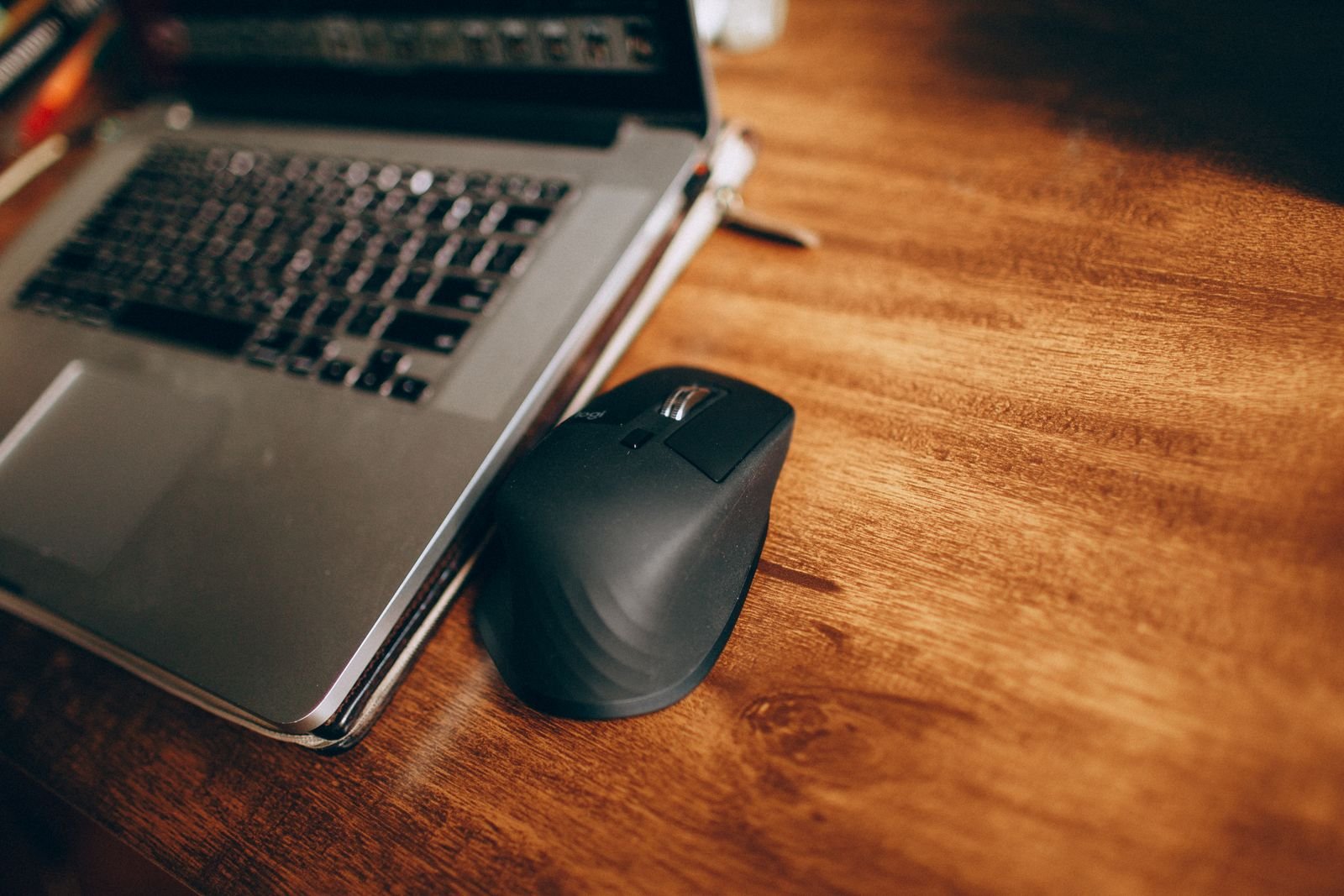
Marcus is a freelance video editor in Austin, Texas, and his mouse picked the worst possible day to misbehave. He was one hour from a client deadline, dragging clips along a timeline, when a single click started opening folders twice, selecting whole paragraphs instead of placing the cursor, and dropping clips in the wrong spot. He clicked once, and Windows acted as if he had clicked twice. He restarted the computer, swapped the USB port, and even blamed the editing software before he realized the mouse itself was the problem.
If that sounds familiar, you are dealing with one of the most common Windows annoyances, and the good news is that most cases have a free fix. Learning how to stop mouse double clicking Windows 11 problems is mostly a matter of testing in the right order. A setting causes some cases, a driver causes others, and a tired switch inside the mouse causes the rest. This guide walks you through nine fixes from quickest to deepest, so you can stop the phantom clicks without buying a new mouse first.
How to Stop Mouse Double Clicking Windows 11: Start With a Two Minute Test
Before you change any setting, find out whether your mouse is really sending two clicks. That one test decides everything that follows, because settings fixes cannot help a worn switch, and a new mouse cannot help a wrong setting.
Open your browser and search for a free mouse double click test. These small web tools count every click and flag any extra click that arrives within a few milliseconds of the last one. Click slowly and normally inside the test box about 20 to 30 times. A human finger cannot click twice within a few milliseconds on purpose, so any extra clicks the tool flags came from the mouse, not from you.
Read the result like this. If the test shows zero extra clicks, your mouse hardware is fine and the fault is in Windows settings, a driver, or a running program. Skip to fix 1. If the test flags one or two extra clicks, the switch is starting to wear or has dust inside, so try the cleaning steps in fix 6. If it flags many extra clicks, or the mouse fails a simple hold test where you press and hold the button for five seconds and it keeps releasing on its own, the switch is chattering badly and you should look at fix 7 and fix 8.
Then run a second quick test. Plug the mouse into a different computer or laptop and click around for a minute. If it double clicks there too, the fault travels with the mouse, which points at hardware. If it behaves perfectly on the second computer, the fault lives on your PC, which points at settings or drivers. If you use a laptop, try the touchpad as well. When the touchpad clicks cleanly while the mouse does not, the mouse is the suspect. When both misbehave, Windows is the suspect. Write down what you found, because that note will keep you from repeating fixes that already failed.

Fix 1: Turn Off Single Click to Open in File Explorer
This is the most common false alarm of all, and it takes less than a minute to check. Windows has a File Explorer option that opens files and folders with a single click instead of a double click. When it is turned on, one click opens an item, which looks exactly like a double clicking mouse, even though the mouse is working perfectly.
Press the Windows key plus E to open File Explorer. On Windows 11, select the three dot menu at the top, which is labelled See more, then choose Options. On the General tab, look for the section called Click items as follows. Choose Double click to open an item, with single click to select in brackets, then select Apply and OK.
Now test it. Click a folder once and wait. It should select, not open. Double click the folder and it should open. If a single click still opens the folder after this change, the setting was not your problem, so move on to fix 2. If the behaviour is fixed, you are done, and your mouse was innocent all along.
Fix 2: Move the Double Click Speed Slider to Fast
Windows turns two clicks into one double click when they arrive close together in time and the pointer has not moved. The gap that counts as a double click is controlled by the double click speed setting, and if that slider sits at the slowest end, two separate deliberate clicks can be read as one double click.
Open Settings, go to Bluetooth and devices, then Mouse. Scroll down to Related settings and select Additional mouse settings. This opens the classic Mouse Properties window. On the Buttons tab, find the Double click speed slider and move it toward Fast, or at least to the middle. Test it on the folder icon beside the slider. Then select OK.
This fix helps when your clicks feel slightly delayed, or when slow deliberate clicks keep opening things you only meant to select. It will not help a worn switch, because a bouncing switch sends its second click within milliseconds, far faster than any slider setting can filter. If the slider was already near Fast, note that and move on.
Fix 3: Turn Off ClickLock
ClickLock is a Windows feature that lets you drag items without holding the button down. It sounds useful, but when it is turned on by accident it makes files grab and release at odd times, and it can feel very much like a double click problem.
Open the same Mouse Properties window from fix 2 and stay on the Buttons tab. Look for the checkbox labelled Turn on ClickLock and make sure it is clear. Select OK, then test dragging a file across your desktop. If the dragging now behaves normally, ClickLock was your culprit. If nothing changes, leave it off anyway and continue to the next fix, because you have now ruled out three settings in under five minutes.
Fix 4: Reinstall the Mouse Driver in Device Manager
A corrupt mouse driver, or a driver that clashed with a recent Windows update, can turn one click into two. This is especially likely if the problem started right after an update, or after you installed a new program that manages input devices.
Right click the Start button and select Device Manager. Expand the section called Mice and other pointing devices, right click your mouse, and choose Uninstall device. If a checkbox offers to delete the driver software, tick it. Then restart your computer. Windows will detect the mouse again on startup and install a fresh copy of the driver automatically.
Test the mouse for a few minutes after the restart. If the double clicking has stopped, the old driver was the problem. If it continues, check Windows Update for optional driver updates, then visit your laptop or mouse maker support page and install the latest driver for your exact model. Install one driver at a time and test after each one, because installing several at once makes it hard to know which change helped. Windows 11 settings cause more display and input trouble than most people expect, so if your screen has been acting up too, our guide on how to fix blurry text on second monitor Windows 11 setups covers the display side of the same settings story.
While you are in Device Manager, also look for duplicate mouse entries. Sometimes Windows lists the same mouse twice, or keeps an old entry from a mouse you no longer use, and the two entries can fight each other. If you see a second entry for a device you no longer own, uninstall it and restart.
Fix 5: Update the Mouse App and Turn Off Extra Features
Many gaming and office mice ship with their own software, such as Logitech G Hub, Razer Synapse, or Corsair iCUE. These apps add useful features, but a buggy update or a wrong profile can also duplicate clicks. Start by updating the app to the latest version, then restart your computer and test again.
Next, look inside the app for settings that change click behaviour. Some apps let you adjust debounce time, which is a short delay the mouse uses to ignore the electrical flicker a switch makes when it closes. Most mice default to about 4 ms. Raising that value to 10 to 12 ms can filter out the false second click from a tired switch, and for many people this is the fastest fix of all. If your app offers a debounce or button response setting, raise it one step at a time and test after each change.
Also check for features you do not use. Rapid fire modes, double click macros, and button remapping profiles can all create extra clicks. Turn off any macro assigned to the left button, and switch to the default profile for a test day. If the problem disappears on the default profile, one of your custom settings was the cause, and you can rebuild your profile one feature at a time.
Wireless mice deserve one extra check here. A low battery, a receiver plugged into a busy USB hub, or a receiver sitting behind a metal desk leg can all cause missed and repeated signals. Change the batteries or charge the mouse fully, then plug the receiver into a USB port on the opposite side of the laptop, away from other busy USB gear. A short USB extension cable can also help by moving the receiver into clearer air. Other wireless gear in the same room can clash too, and if your headphones drop out as well, read our guide on how to fix Bluetooth headphones that keep disconnecting from laptop computers for the same kind of interference hunt.
Fix 6: Clean the Mouse Button and Sensor
Dust, crumbs, and skin oils work their way into the gap around the click button over months of daily use. That grime can stop the switch from closing cleanly, which is one of the most common causes of a mouse that double clicks only sometimes, or only when you press at a certain angle.
Unplug the mouse or switch it off, then turn it upside down and tap it gently over a trash can. Use a can of compressed air with short bursts aimed at an angle around the left button and the scroll wheel, so dust blows out sideways instead of getting pushed deeper inside. Keep the can upright at all times, because tilting it can release freezing liquid that damages plastic and switch contacts.
Next, take a soft brush, such as a clean makeup brush or a brush made for electronics, and sweep it along the seam where the button meets the body. Follow with a cotton swab lightly dampened with isopropyl alcohol, run along the same seam, and let everything dry for ten minutes before you plug the mouse back in. Never pour or spray any liquid directly onto the mouse. Test the click tester again after cleaning. A mouse that flagged one or two extra clicks before cleaning will often test clean afterwards, and that ten minute job can add months to its life.
The same dust that settles in your mouse settles in your keyboard too. If your keys feel gritty or sticky, our guide on how to clean a mechanical keyboard without removing keycaps uses the same gentle approach and the same tools.

Fix 7: Try Free Debounce Software Before You Open the Mouse
If the click test still shows extra clicks after the settings and cleaning fixes, the switch itself is wearing out. Before you open the mouse or buy a replacement, try a free software filter. Debounce software sits between the mouse and Windows and ignores any second click that arrives within a few milliseconds of the first one, which is exactly the signature of a bouncing switch.
Search for a free tool such as X Mouse Button Control or a dedicated double click fix utility from the Microsoft Store. Install it, set the debounce delay to around 10 ms, and test again with the click tester. For many people this completely hides the problem, and the mouse feels normal again in daily use.
Be honest with yourself about what this fix is. It is a filter, not a repair. The switch is still wearing out, and the problem will slowly get worse over months as the contacts degrade further. Debounce software buys you time, which is valuable when money is tight or when you need the mouse to survive until a replacement arrives. It is not a permanent cure, and if you rely on precise clicks for design work or gaming, you will feel the tiny delay eventually. Use the breathing room to pick a good replacement instead of a rushed one.
Fix 8: Tighten the Switch Spring if You Are Comfortable Opening the Mouse
Inside every click button sits a small metal spring inside the microswitch. After tens of thousands of clicks, that spring loses tension, and the contacts inside start to bounce instead of closing cleanly. That bounce is the extra click you feel. If you are comfortable with a screwdriver and you accept the risk, you can restore the spring tension yourself.
First, the warnings, because they matter. Opening the mouse will void the warranty on most models, so check the warranty first and claim a replacement instead if the mouse is still covered. Work on a clean table with good light, keep a small tray for the screws, and take a photo of each layer before you remove it so you can put it back together. If you have never opened small electronics before, skip this fix and go to fix 9. A backup mouse is a wise precaution, because a slipped screwdriver can crack a switch housing.
Remove the screws, which are often hidden under the glide pads on the base, and lift the top shell away gently. Find the small rectangular microswitch under the left button. Carefully open the switch housing with tweezers, lift out the tiny copper spring, and bend it very slightly to restore its curve. Clean the contact points inside the switch with a dry cotton swab while you are there. Reassemble the switch, close the shell, and test with the click tester before you trust it with real work.
Some people prefer to replace the microswitch entirely instead of bending the spring. Replacement switches cost only a few dollars, but swapping one needs a soldering iron and steady hands. If you own those tools and enjoy that kind of repair, a switch swap is the only true permanent fix for a worn switch. If you do not, the cost of the tools plus your time is usually more than a new mouse, which brings us to the last fix.
Fix 9: Check the Battery and Receiver, Then Replace the Mouse if Nothing Works
Wireless mice have two extra failure points that wired mice do not. The first is power. A low battery makes the radio signal weak and erratic, and a weak signal can register as repeated clicks. Swap in fresh batteries or charge the mouse to full and test again, even if the battery indicator still shows some charge left. Also try a different USB port for the receiver, and keep the receiver within a few feet of the mouse with a clear path between them.
The second is the receiver itself. If you have a second receiver from the same brand, or a Bluetooth connection option, try that instead. A failing receiver can mimic a failing switch perfectly, and it is a much cheaper part to replace.
When every fix has failed, the honest answer is replacement. A good basic wired or wireless mouse costs 15 to 40 dollars in the US, and a solid mid range office mouse is usually under 50 dollars. That is often cheaper than the time you will spend fighting a switch that keeps getting worse. Before you buy, check the warranty on the old mouse. Many quality mice carry a two year or three year warranty, and makers will often replace a double clicking mouse free of charge if you can show the fault on a click test video. Keep your receipt and the serial number from the base of the mouse when you contact support.
When you shop for the replacement, look for a model with optical switches if you want to avoid this problem in the future. Optical switches use light instead of metal contacts, so they have nothing to bounce and nothing to wear out in the same way. They cost a little more, but for a mouse you click thousands of times a day, the extra cost pays for itself in reliability.

Quick Checklist: Find Your Cause in Five Minutes
Use this short list whenever the problem comes back or a new mouse starts acting up. It takes five minutes and it points straight at the cause.
- Run a free double click test. Zero extra clicks means settings or drivers. Many extra clicks means hardware.
- Test the mouse on a second computer. If it misbehaves there too, the fault travels with the mouse.
- Check the File Explorer single click setting and the double click speed slider.
- Turn off ClickLock and any double click macro in your mouse app.
- Reinstall the driver in Device Manager and restart.
- Clean around the button with compressed air and a dry brush.
- Charge or replace the batteries and move the receiver to a clear USB port.
- Try debounce software as a free filter while you decide on repair or replacement.
Conclusion
Learning how to stop mouse double clicking Windows 11 trouble comes down to one habit: test first, then fix in order. The click test and the second computer test tell you in two minutes whether you face a setting, a driver, or a worn switch. Most readers will find the answer in the first three fixes, because a wrong File Explorer setting, a slow double click speed, or an accidental ClickLock explains a large share of cases. Drivers and mouse apps cover the next group, and cleaning plus debounce software covers the group after that.
The takeaways are simple. First, never buy a new mouse until you have run the test, because the fault is often free to fix. Second, change one thing at a time and test after each change, so you know exactly which fix worked. Third, be honest when the switch is worn out. Debounce software and a spring fix can buy months, but a mouse that keeps getting worse deserves a warranty claim or a replacement, preferably one with optical switches. Work through the fixes in order, keep a note of what you tried, and your single clicks should soon do exactly what a single click is supposed to do.
Frequently Asked Questions
Why does my mouse double click when I click once?
Either Windows is reading one click as two, or the mouse is really sending two clicks. The first group covers the File Explorer single click setting, a slow double click speed, ClickLock, a bad driver, or a mouse app macro. The second group covers a worn or dirty microswitch whose metal contacts bounce and send a second signal within milliseconds.
How do I test whether my mouse is really double clicking?
Use a free online double click test and click slowly about 20 to 30 times in the test box. Any extra clicks it flags came from the mouse, because a finger cannot click twice within a few milliseconds on purpose. Also plug the mouse into a second computer. If it double clicks there too, the fault is hardware.
Can I fix a double clicking mouse without buying a new one?
Yes, in most cases. Settings fixes are free, cleaning takes ten minutes, and debounce software can filter out the extra clicks from a worn switch. A spring fix or a switch swap can repair the hardware itself if you are comfortable opening the mouse. Only a switch that keeps getting worse after all of these steps truly needs replacement.
What is debounce time and does it fix double clicking?
Debounce time is a short delay, usually measured in milliseconds, during which the mouse ignores extra signals from the switch. Raising it from the usual 4 ms to about 10 to 12 ms filters out the false second click from a bouncing switch. It hides the symptom rather than repairing the switch, but it is free and it works well as a stopgap.
Does a wireless mouse double click because of a low battery?
It can. A low battery weakens the radio signal, and a weak signal can register as repeated or missed clicks. Charge the mouse fully or fit fresh batteries and test again. Also move the receiver to a USB port with a clear path to the mouse, away from metal objects and busy USB hubs, before you blame the switch.
