

Nothing kills your focus faster than a laptop that suddenly goes black in the middle of your work. One minute you are typing away, the next the screen is dark and the base of the machine is almost too hot to touch. If you have been asking yourself why does my laptop get hot and shut down, you are dealing with one of the most common laptop problems in the world. The good news is that most of the causes are easy to fix at home.
Your laptop is probably not broken. It is protecting itself. Modern laptops monitor their internal temperature all the time, and when the heat reaches a dangerous level they cut the power to prevent permanent damage to the processor and other parts. This guide explains the real reasons behind the heat, the warning signs to watch for, and nine practical fixes you can try today.
Why Does My Laptop Get Hot and Shut Down
Heat is a normal byproduct of computing. Your processor and graphics chip do billions of calculations every second, and that work creates heat. A healthy cooling system moves that heat out through vents and fans before it becomes a problem. Shutdowns happen when something stops the cooling system from doing its job. Think of it like a car engine with a blocked radiator. The engine still works, but without cooling it quickly reaches a temperature where damage is certain, so the safety system switches everything off first.
Most shutdowns come down to a short list of causes. Once you know which one applies to your machine, the fix is usually simple.
Dust and Pet Hair Clogging the Vents
This is the number one cause by a wide margin. Every time the fan pulls in cool air, it also pulls in dust, crumbs, and tiny fibers. Over months and years, this debris packs into the fan blades and the thin fins of the heat sink, forming a dense mat that blocks airflow. If you share your home with a cat or dog, pet hair makes the problem much worse, since long hairs wrap around the fan and choke it quickly. The same hair that ends up all over your sofa ends up inside your laptop too, which is one more reason to stay on top of it. Our guide on how to remove pet hair from your couch can help with the visible half of the problem.
Soft Surfaces Blocking the Air Vents
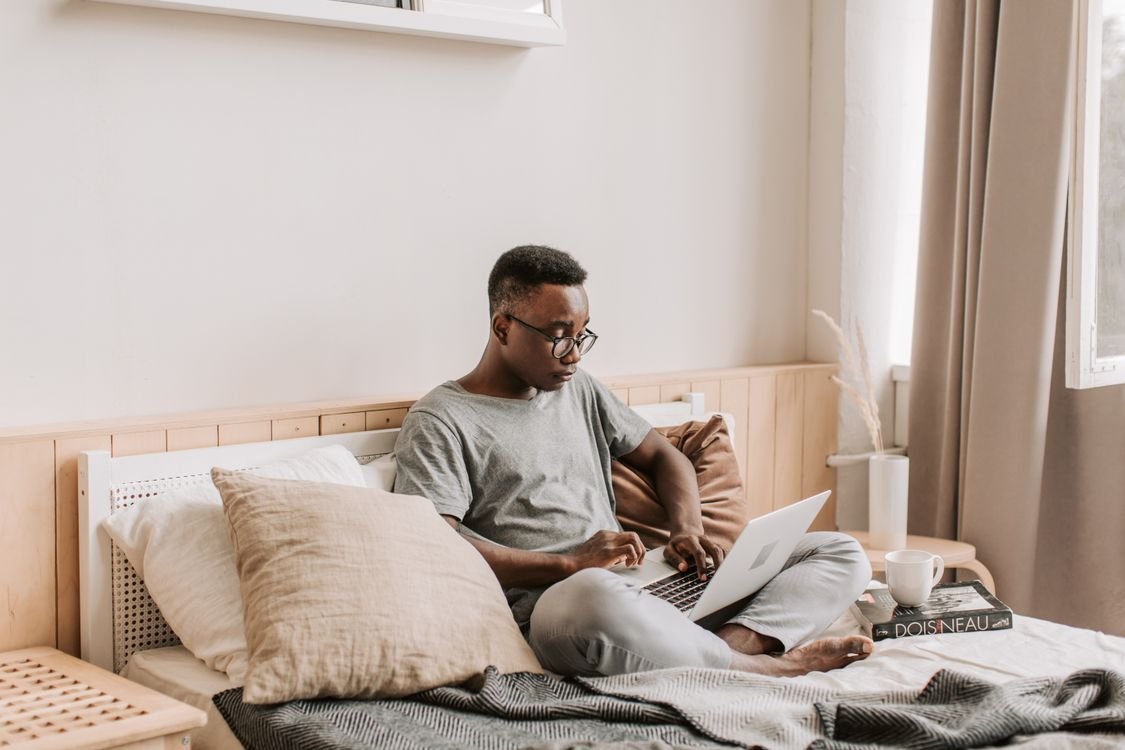
Most laptops draw cool air in through vents on the bottom and push hot air out through vents on the sides or back. Place the machine on a bed, a futon, a sofa cushion, or even your lap, and those bottom vents sink into soft fabric and seal shut. The laptop then sits in its own hot air with nowhere to send it. This is a classic summer problem in Japan, where many people work from low tables or relax with the laptop on a futon during humid August afternoons. The room already feels warm, the fabric traps even more heat, and the machine gives up within an hour.
Dried Out Thermal Paste
Between your processor and its heat sink sits a thin layer of thermal paste, a soft compound that carries heat from the chip to the cooler. After two to four years of regular use, this paste dries out and cracks, and heat transfer drops sharply. The chip then runs far hotter than the cooling system was designed for, even when the fans are clean and spinning normally. This is especially common in laptops that have seen years of heavy use, such as gaming or video editing.
A Failing or Worn Out Fan
Fans are moving parts, and moving parts wear out. A fan with worn bearings spins slower than it should, makes rattling or grinding noises, or stops spinning altogether. When the fan cannot move enough air, temperatures climb fast under even light loads. Sometimes the fan itself is fine but its control has failed, so it never speeds up when the processor gets busy.
Too Much Work for the Cooling System
Modern software can push a laptop harder than its slim body can handle. Video editing, 3D games, dozens of browser tabs with auto playing video, and background updates can all keep the processor at full speed for hours. Thin and light laptops in particular have very little room for heat sinks and fans, so sustained heavy loads can overwhelm them even when everything is clean and working properly.
Warning Signs Your Laptop Is Overheating
Catch the problem early and you can often fix it before the shutdowns start. Watch for these signs:
- The base or keyboard feels uncomfortably hot to the touch, especially on one side
- The fan runs loudly or at full speed even when you are doing simple tasks
- Programs slow down, stutter, or freeze for a few seconds at a time
- The laptop shuts down suddenly without any warning message, usually during games or video calls
- The screen goes black on its own and the machine restarts by itself
- Battery life drops sharply, since heat makes the battery work harder and age faster
If two or more of these sound familiar, work through the fixes below in order. Most people solve the problem within the first three.
Nine Simple Fixes for a Laptop That Overheats and Shuts Down
Start with the easy fixes. Each one takes only a few minutes, and you can stop as soon as the problem is gone.
Fix 1: Blow the Dust Out of the Vents
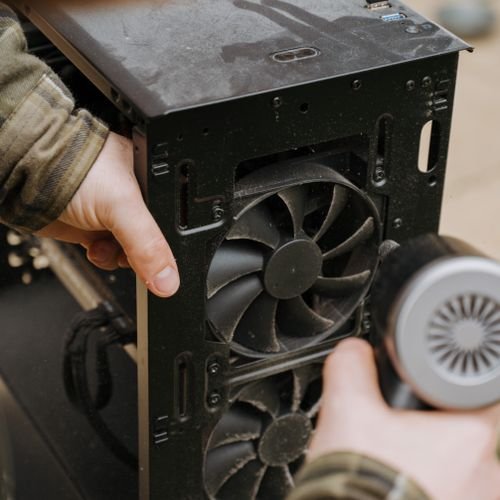
Shut the laptop down completely and unplug it. Hold a can of compressed air upright and give short bursts into the intake and exhaust vents. Short bursts matter. Long sprays can push moisture into the machine or spin the fan too fast and damage it. You will be surprised how much dust comes out of a machine that has never been cleaned. Do this outside or near an open window if you can, and repeat it every few months. The same patient approach works for deep cleaning jobs around the house, as our guide on how to clean a microwave with lemon and vinegar shows.
Fix 2: Lift the Laptop So Air Can Flow Underneath
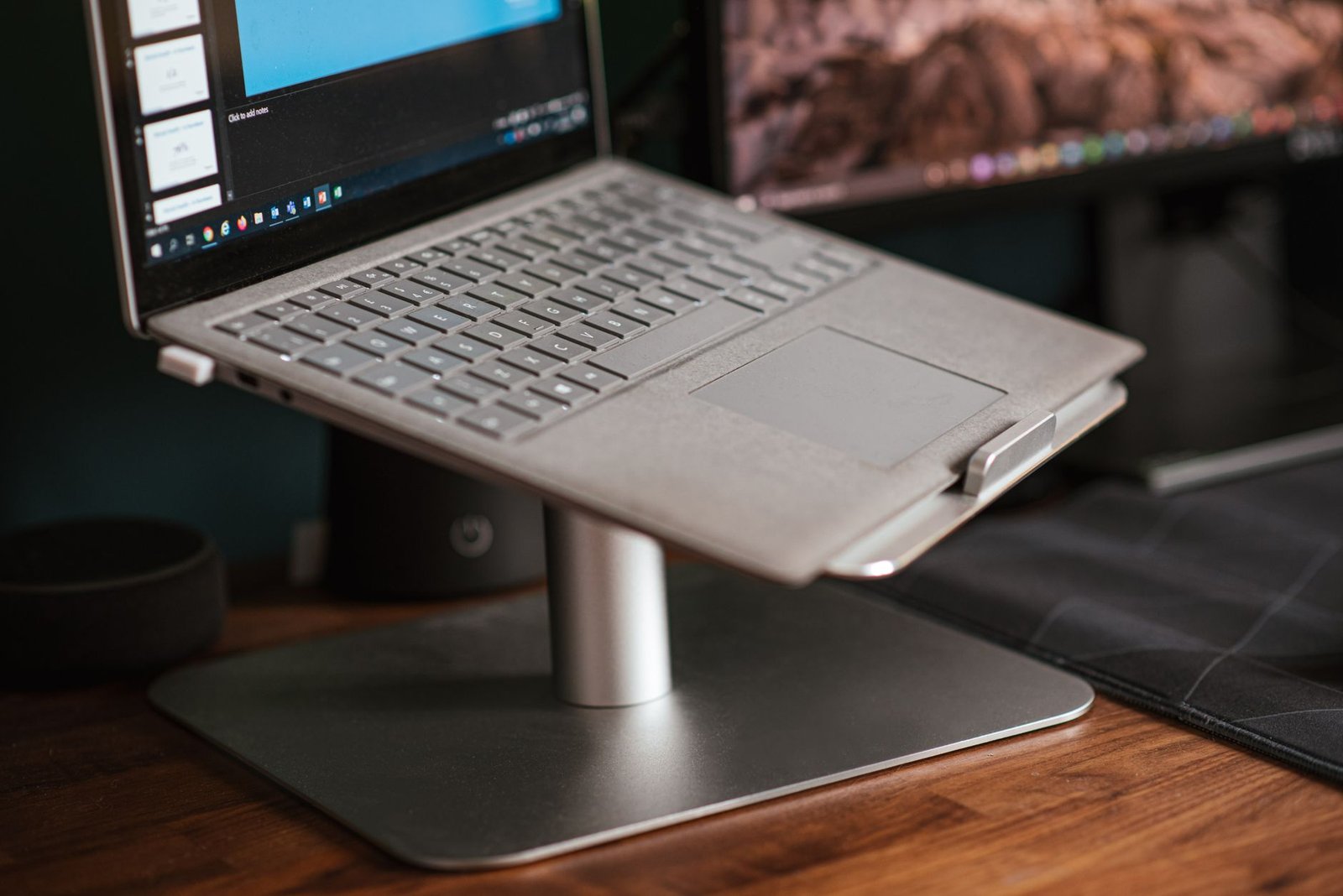
Raise the back of the laptop by a couple of centimeters. A book, a pair of bottle caps under the rear feet, or a proper laptop stand all work. Even a small gap lets cool air reach the intake vents on the bottom. For a bigger improvement, use a cooling stand that has its own fans to push extra air across the base. This single change can drop temperatures by several degrees, which is often enough to stop the shutdowns.
Fix 3: Get Off Soft Surfaces
Move the laptop to a hard flat desk or table. If you like working from the sofa or bed, put a lap desk, a large book, or a tray underneath so the vents stay open. In small Japanese apartments where floor sitting is common, a low folding table works perfectly and keeps the vents clear of futon fabric and kotatsu blankets. Never run demanding programs with the laptop sitting on bedding.
Fix 4: Close Heavy Programs and Browser Tabs
Open your task manager and sort by CPU usage. You will often find one program eating far more power than it should, such as a browser with forty tabs, a game launcher updating in the background, or a video call app running at high resolution. Close what you do not need. Also check which programs start automatically when the machine boots, and switch off the ones you rarely use. Less work means less heat.
Fix 5: Switch to a Cooler Power Plan
On Windows, open the power settings and choose Balanced or Power Saver instead of Best Performance. On a Mac, turn on Low Power Mode in the battery settings. These modes cap how hard the processor is allowed to work, which directly cuts heat output. Lowering screen brightness by twenty percent helps too, since the display is one of the hungriest parts of the machine.
Fix 6: Keep the Room Cool
A laptop can only cool itself with the air around it. If the room is already hot, the cooling system has no chance. During a humid Japanese summer, even a small fan pointed at your desk makes a real difference. Keep the laptop out of direct sunlight, away from radiators and heaters, and give it some breathing room instead of wedging it between books or papers.
Fix 7: Check for Runaway Processes and Malware
Sometimes the heat comes from software you never asked for. Cryptocurrency miners and other malware are designed to use one hundred percent of your processor in secret, which turns any laptop into a furnace. Run a full scan with a trusted antivirus program. Even without malware, a corrupted update or a stuck background task can pin the CPU at full speed, so check the task manager for anything using constant high CPU and end it.
Fix 8: Update Drivers, Firmware, and the Operating System
Manufacturers regularly release updates that improve fan control and power management. An outdated BIOS or graphics driver can leave the fan running too slowly or let the processor draw more power than it needs. Check your laptop maker’s support page for BIOS and driver updates, and install operating system updates as well. Restart after updating so the new fan curves take effect.
Fix 9: Renew the Thermal Paste or Replace the Fan
If the laptop is more than three years old and the easy fixes did not help, dried thermal paste or a dying fan is the likely culprit. Replacing either one means opening the machine, cleaning off the old paste, and applying a fresh layer, or fitting a new fan unit. This is very doable for confident DIYers with a good teardown guide, but if the laptop is still under warranty, take it to an authorized service center instead. Opening it yourself could void the coverage.
When to Take Your Laptop to a Repair Shop
Most overheating is a home fix, but some symptoms mean professional help is the safer choice:
- You smell burning plastic or see any swelling in the battery area, so stop using the machine at once
- The fan never spins at all, even when the laptop is clearly hot
- Shutdowns continue after you have tried every fix above
- The laptop is still under warranty and needs internal work
- You notice physical damage, loose parts, or liquid spill marks near the vents
A swollen battery is the one true emergency on this list. Do not charge the laptop and do not try to remove the battery yourself. Take it to a service center straight away.
How to Prevent Overheating in the Future
A little routine care keeps the problem from coming back. Clean the vents with compressed air every three to six months, more often if you have pets or live somewhere dusty. Always use the laptop on a hard surface with the vents uncovered. Keep heavy software sessions reasonable and give the machine a break between long gaming or editing marathons.
Storage matters too. Do not leave the laptop in a hot car or in direct sun by a window. Heat soaks into the battery and shortens its life even when the machine is off. A cool dry shelf or desk is the best home for it.
Conclusion
When you wonder why does my laptop get hot and shut down, the answer is almost always the same story: dust in the vents, blocked airflow, or aging parts that can no longer move heat away fast enough. The safety shutdown that annoys you is actually saving your machine from real damage.
The takeaways are simple. Clean the vents regularly, keep the laptop on a hard surface with room to breathe, close programs you are not using, and keep the room reasonably cool. Work through the nine fixes in order and most overheating problems disappear without spending any money. If the shutdowns persist after all of that, let a repair shop take a look before the heat causes lasting harm. And if you enjoy sorting out tech problems yourself, you may also like our guide on why your TV keeps disconnecting from WiFi.
Frequently Asked Questions
Is it normal for a laptop to feel warm?
Yes, mild warmth on the base and keyboard is completely normal, especially during video calls or gaming. It becomes a problem only when the machine is painfully hot to touch, the fan screams constantly, or the laptop shuts itself down.
Can overheating permanently damage my laptop?
Repeated overheating can shorten the life of the battery, warp internal parts, and in rare cases damage the processor or motherboard. That is exactly why laptops shut down automatically. Fix the cooling issue promptly and lasting damage is unlikely.
How often should I clean my laptop vents?
Every three to six months is a good rhythm for most people. If you have pets, live in a dusty area, or use the laptop on fabric surfaces often, clean them every two to three months instead.
Will a cooling pad stop my laptop from shutting down?
A cooling pad helps by pushing extra air under the laptop, and it often lowers temperatures by a few degrees. It works best together with clean vents and an open hard surface. On its own it may not fix severe dust buildup or dried thermal paste.
Should I keep using my laptop while it is overheating?
Save your work and let it cool down first. Running demanding tasks on an overheating machine risks sudden shutdowns and lost files, and it puts extra strain on the battery. A ten minute break on a hard surface does more good than pushing through.
