
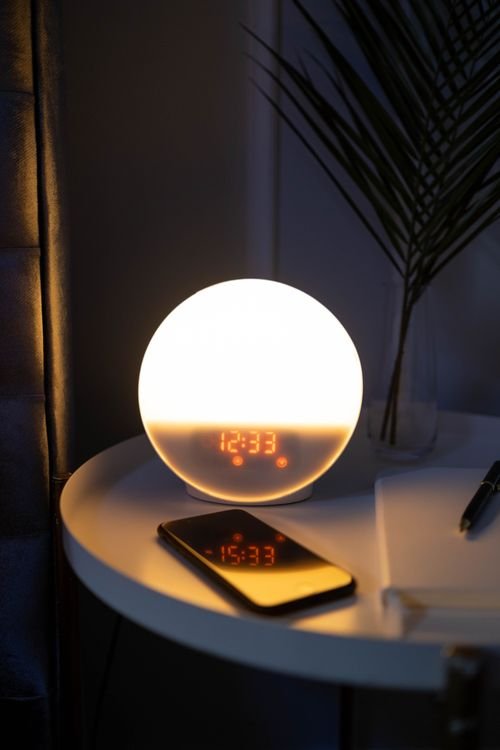
You plug your phone in at 80 percent, fall asleep, and wake up to 55. Or you skip the charger entirely and watch the battery slide from 60 percent to 15 while the phone just sits on your nightstand doing nothing. The screen was off all night. No apps were open. Nothing was playing. It feels like the phone is secretly working a night shift without telling you.
Why does my phone battery drain overnight? The short answer is that your phone is never fully asleep. Even with the screen off, dozens of processes keep running in the background. Apps check for updates, the radio keeps hunting for a signal, backups kick in, and notifications keep waking the processor. Each one uses a little power, and over seven or eight hours those little sips add up to a big gulp.
The good news is that a sudden overnight drop is almost always fixable, and it rarely means your battery is dying. This guide walks you through the real causes of overnight battery drain, how to find the exact culprit on your phone, and the simple fixes that stop the drain for good. These steps work for both iPhone and Android, and most take under two minutes.
Why Does My Phone Battery Drain Overnight? The 7 Real Causes
Understanding what actually happens while you sleep makes the fixes obvious. Here are the seven most common reasons your phone wakes up tired.
1. Background Apps That Never Truly Sleep
When you swipe away an app, it often keeps running in the background. Social media apps refresh your feed, email apps check for new messages, and news apps download stories so they are ready in the morning. Each of these wakeups uses the processor and the network radio. One app doing this is harmless. Twenty apps doing it all night is a slow leak that can drain 10 to 20 percent by morning.
This is the single most common cause of overnight drain, especially if the drop started suddenly after an app update. A buggy update can leave an app stuck in a loop, checking for data every few minutes instead of every few hours.
2. A Weak Signal Makes Your Phone Work Overtime
This one surprises people. When your phone struggles to hold a cellular or wifi signal, it keeps boosting its radio power to stay connected. It searches, connects, drops, and searches again, all night long. The radio is one of the biggest power users in your phone, so a weak signal in your bedroom can easily eat 15 to 30 percent overnight.
If you sleep in a basement, a room far from your router, or an area with spotty coverage, signal struggle is a prime suspect. A weak wifi connection causes the same problem as weak cellular, because the phone keeps retrying the connection. If other devices in your home also struggle with wifi, you might enjoy my guide on why your TV keeps disconnecting from wifi, since the same weak signal tricks apply there.
3. Location Services Keep Polling While You Sleep
Maps, weather apps, ride share apps, fitness trackers, and even some social apps can check your location in the background. GPS is extremely power hungry, and on some phones these apps keep polling all night even though you have not moved an inch. Check which apps have permission to use your location at all times. Most of them do not need it.
4. Sync, Backups, and Updates Love the Quiet Hours
Your phone is smart about scheduling heavy work for the time you are not using it. Cloud photo backups, system updates, app updates, and security scans often run overnight on purpose. This is normal and usually fine, but if several of these land on the same night, you will wake up to a much lower battery than usual. A one night drop after an update is rarely something to worry about.
5. Notifications Wake Your Phone Hundreds of Times
Every notification wakes the processor, lights up part of the screen, and often triggers a vibration or sound. A single group chat that stays active late can wake your phone dozens of times. Multiply that across messaging apps, email, news alerts, and social media, and your phone may wake up hundreds of times between midnight and morning. Each wakeup is tiny, but hundreds of them are not.
6. An Aging Battery Cannot Hold Charge Like It Used To
Lithium ion batteries wear out with use. After roughly 500 full charge cycles, which is about 18 to 24 months of daily charging for most people, the battery holds noticeably less energy. An older battery also loses charge faster when idle because its internal chemistry is less efficient. If your phone is more than two years old and the drain has been getting worse for months, battery age is likely part of the story.
7. Bluetooth, Hotspots, and Always On Connections
Bluetooth scanning, an active mobile hotspot, wifi scanning for location, and a paired smartwatch all keep radios alive through the night. None of them drains much on its own, but together they keep your phone from entering its deepest sleep state. Deep sleep is when the phone uses almost no power, and anything that prevents it costs you battery.
How to Find Exactly What Is Draining Your Battery
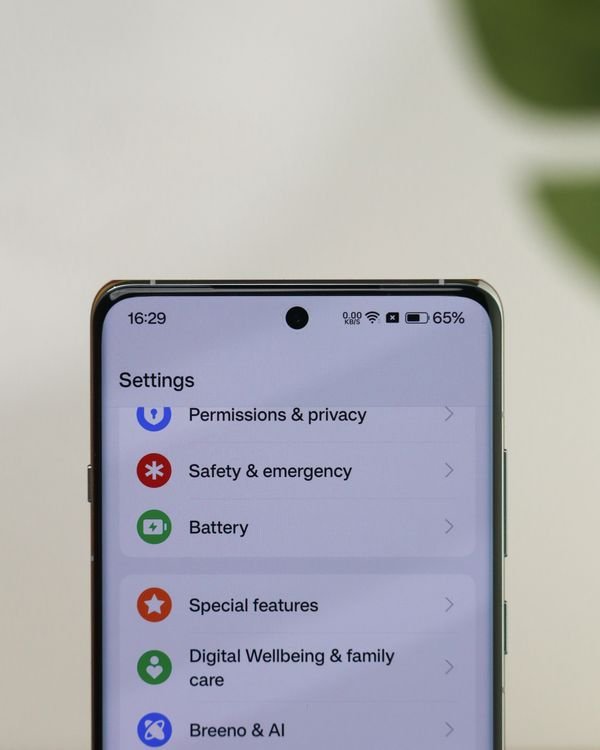
Before changing anything, spend one minute finding the actual culprit. Your phone already tracks this for you.
On iPhone, open Settings, tap Battery, and scroll down to the battery usage by app list. Tap Last 24 Hours and look at which apps used power while the screen was off. Any app showing high background activity is a suspect.
On Android, open Settings, tap Battery, then tap Battery usage. Look at the breakdown and pay special attention to apps with high usage during the hours you were asleep. Many Android phones also show a screen on versus screen off split, which tells you whether the drain happened while the phone was idle.
As a quick test, try this tonight. Note your battery percentage before bed, then turn on airplane mode and check it in the morning. If the drain mostly disappears, a radio activity like signal searching or network sync is the cause. If it continues, an app or a battery health issue is more likely. This single test narrows the problem down fast.
7 Fixes That Stop Overnight Battery Drain
Work through these in order. Most people see a big improvement after the first three.
Fix 1. Use Airplane Mode or a Sleep Focus at Bedtime
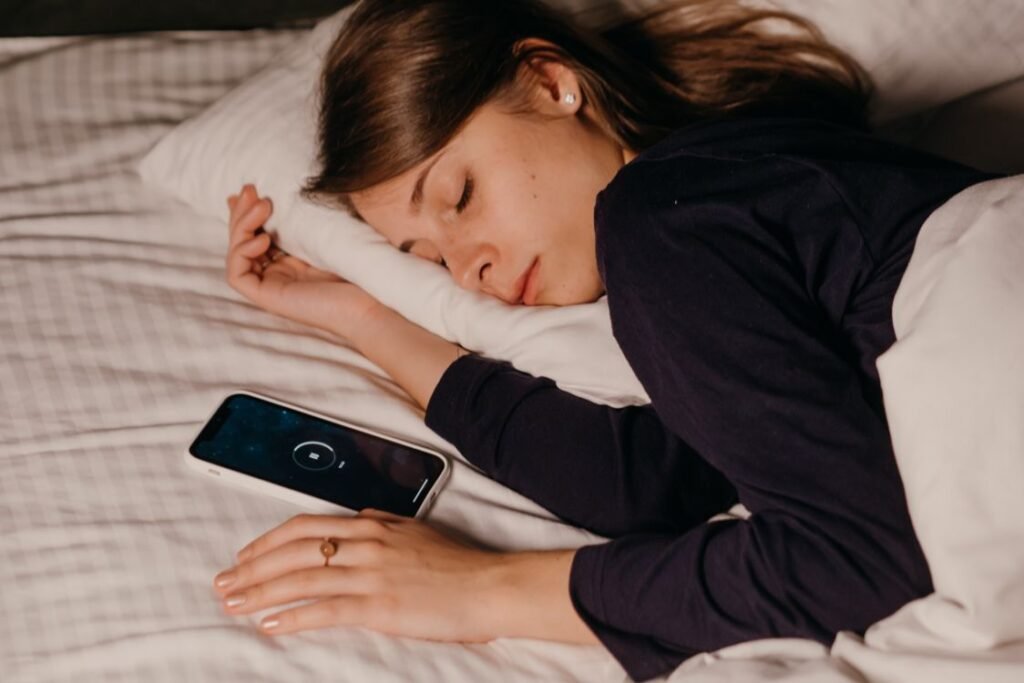
This is the fastest win. Turning on airplane mode before bed shuts down the cellular, wifi, and Bluetooth radios, which stops signal hunting, syncing, and notifications in one move. Your alarm still works in airplane mode, so you will wake up on time with a nearly full battery.
If you need calls to come through for emergencies, use a sleep focus instead. On iPhone, set up a Sleep Focus that silences everything except chosen contacts. On Android, use Bedtime mode or Do Not Disturb with exceptions for starred contacts. You get the battery savings of a quiet phone without missing anything urgent.
Fix 2. Limit Background Activity for Hungry Apps
Remember that battery usage list from the last section. For any app with high background usage that you do not need overnight, restrict it. On iPhone, go to Settings, General, Background App Refresh, and turn it off for the worst offenders, or turn it off entirely. On Android, go to Settings, Apps, pick the app, tap Battery, and set it to Restricted. The app still works perfectly when you open it. It just stops working the night shift.
Fix 3. Tighten Location Permissions
Go through your location permissions and be ruthless. On iPhone, open Settings, Privacy and Security, Location Services, and change every app you can from Always to While Using the App or Ask Next Time. On Android, open Settings, Location, App Location Permissions, and do the same. Navigation and ride share apps can keep their access. Your weather widget and your photo editor cannot.
Fix 4. Turn Off the Hidden Signal Switchers
Both platforms have features that quietly switch between wifi and cellular when the signal is weak, and that switching burns power all night. On iPhone, open Settings, Cellular or Mobile Data, scroll all the way to the bottom past the app list, and turn off WiFi Assist. On Samsung and Pixel phones, look in Settings under Connections or Network for options like Adaptive Connectivity or Switch to Mobile Data, and turn them off. If your bedroom wifi is weak, this one setting alone can save a surprising amount of battery.
Fix 5. Keep Your Phone Cool and Your Software Current
Heat speeds up battery drain and damages battery health over time. Do not charge or store your phone under your pillow, on a thick blanket, or in direct sun. A nightstand with open air around it is ideal. Heat is the enemy of batteries in every device, not just phones. If your laptop runs hot too, read my guide on why your laptop gets hot and shuts down, because the same heat management ideas apply.
Also install software updates promptly. Updates often include battery and background activity fixes, and staying current closes the door on known drain bugs. The one exception is the night right after a big update, when the phone may do extra indexing work. Give it one night before judging.
Fix 6. Rethink Your Overnight Charging Habits

Charging overnight is convenient, and modern phones handle it better than old ones, but sitting at 100 percent for hours every night still wears the battery faster. The sweet spot for battery health is keeping the charge between 20 and 80 percent most of the time.
Turn on your phone’s smart charging feature. On iPhone it is called Optimized Battery Charging, found under Settings, Battery, Battery Health and Charging. On Pixel it is Adaptive Charging, and Samsung calls it Protect Battery with an 80 or 85 percent limit option. These features learn your wakeup time and hold the battery at 80 percent until just before your alarm, which dramatically reduces the time spent at full charge.
If your phone does not have these options, a simple outlet timer that cuts power after two or three hours does the same job for a few dollars.
Fix 7. Restart Weekly and Reset Settings as a Last Resort
A simple restart clears stuck background processes and is the oldest trick in tech support for a reason. Make it a weekly habit. If the drain started suddenly and nothing else helps, reset your settings without erasing your data. On iPhone, go to Settings, General, Transfer or Reset iPhone, Reset, then Reset All Settings. On Android, look for Reset Options under System and choose Reset App Preferences or Reset Settings. This clears misbehaving configurations while keeping your photos, apps, and files.
What Overnight Charging Really Does to Battery Health
There is a lot of fear around charging overnight, so here is the honest version. One night of charging to 100 percent does almost nothing. Hundreds of nights of sitting at full charge, warm, for six hours does wear the battery faster. The damage comes from the combination of high voltage, heat, and time.
Smart charging features exist exactly for this reason, and they work well. If you use one, overnight charging is close to harmless. If you do not, and your phone gets warm on the charger every night, switching to an 80 percent limit or a timer will add months to your battery’s healthy life. Either way, the battery will eventually age. That is normal chemistry, not a defect.
When It Is Time to Replace the Battery
Sometimes the drain is not a settings problem at all. Check your battery health number. On iPhone, open Settings, Battery, Battery Health and Charging, and look at Maximum Capacity. On many Android phones, you can dial *#*#4636#*#* to see battery info, or check under Settings, Battery, Battery Health on newer models.
If maximum capacity is under 80 percent, a replacement will make a bigger difference than any setting. Other signs the battery itself is done include the phone shutting off at 20 or 30 percent, swelling or a lifting screen, and the phone getting hot during light use. A battery replacement at an authorized shop usually costs far less than a new phone and takes under an hour.
The Bottom Line on Overnight Battery Drain
Why does my phone battery drain overnight? Because your phone never really sleeps. Background apps, weak signals, location polling, overnight syncs, and endless notifications each take a small sip of power, and together they can drink a quarter of your battery by morning. The fix is almost never a new phone or a new battery. It is airplane mode at bedtime, tighter background and location permissions, turning off WiFi Assist, and letting smart charging protect your battery.
Start tonight with the airplane mode test. Check your battery before bed, flip on airplane mode, and see where you land in the morning. If the drain vanishes, you know the radios were the problem and the fixes above will handle it. If it continues, your battery usage screen will point you straight at the hungry app. Either way, you are one evening of small changes away from waking up to a full battery again.
Frequently Asked Questions
Is it normal for a phone to lose battery overnight?
Losing 2 to 5 percent overnight is completely normal. The phone maintains its network connection and runs basic maintenance. Losing 15 percent or more regularly is not normal and points to a fixable cause like background apps or a weak signal.
Should I charge my phone overnight or not?
You can charge overnight safely if you use your phone’s smart charging feature, which holds the battery at 80 percent until near your wakeup time. Without it, frequent nights at 100 percent will age the battery a little faster, but it will not ruin it.
Does airplane mode save battery overnight?
Yes, and it is the single biggest overnight saver for most people. Airplane mode turns off the cellular, wifi, and Bluetooth radios, which stops signal hunting and syncing. Your alarm still works normally.
Why does my phone drain faster overnight than during the day?
Overnight, the phone stays idle for six to eight hours straight, which is when it schedules backups, updates, and heavy syncing. During the day you notice drain from screen use, but at night background work and signal struggles run uninterrupted for hours.
Can a software update cause overnight battery drain?
Yes, temporarily. After a major update, the phone reindexes files and recalibrates the battery, which can cause extra drain for a night or two. If heavy drain continues for more than three nights after an update, check for a misbehaving app instead.
