

If your laptop keeps dropping wifi while your phone sits right next to it with full bars, you are not imagining things, and your router is probably fine. The question of why does my wifi drop only on my laptop and not my phone is one of the most common tech complaints in American homes, and the answer almost always lives inside the laptop itself. Phones and laptops handle wireless connections in very different ways, and once you understand the difference, the fix is usually simple. This guide starts with five minute quick wins, then gives you separate fix paths for Windows laptops and MacBooks, then covers router tweaks, so you can end the drops for good.
Why Does My Wifi Drop Only on My Laptop and Not My Phone: The Real Reasons
Before changing any settings, it helps to know why this happens. Your phone is built to stay connected at all costs. Its wifi radio is simple, always on, and tuned to hold a signal even when the signal is weak. Your laptop plays by different rules, and four of them cause almost every case of laptop only drops.
First, laptops are aggressive about saving power. Windows can put the wifi card into a low power state when it thinks you are idle, and some laptops do this even in the middle of a video call. Phones do not have this behavior because their radios sip power by design.
Second, the wifi antennas in a laptop live inside the display lid, and they are easy to block. Close the lid halfway, rest the laptop on a metal desk, or sit with the lid facing away from the router, and the signal reaching the card falls off fast. Phone antennas are tuned and positioned for exactly this kind of casual use.
Third, driver trouble is a laptop only problem. A Windows update can quietly replace your laptop maker tuned wifi driver with a generic one, and the generic one may drop connections under load. Phones update their radio software as one tested unit, so this mismatch rarely happens there.
Fourth, many home routers try to be clever by steering devices between the 2.4 GHz and 5 GHz bands automatically. Phones handle the handoff smoothly. Many laptop wifi cards do not, and they bounce between bands until the connection collapses.
First Confirm the Problem Is the Laptop
Do this two minute check before you touch any settings, because it tells you where the fault actually lives. Look at your phone, tablet, or smart TV right now. If every other device stays online while only the laptop drops, the laptop is the suspect. If several devices drop together, the router or your internet provider is the suspect instead.
Next, test the laptop on a different network. Turn on the personal hotspot on your phone and connect the laptop to it for ten minutes, or take the laptop to a coffee shop. If the drops stop, your home router setup is part of the problem. If the drops follow the laptop everywhere, the laptop hardware or software is the problem. If your TV also loses its connection at home, our guide on why your TV keeps disconnecting from wifi covers the router side fixes that help every device in the house.
5 Minute Quick Fixes to Try First
Work through these in order. Most laptop only wifi drops are fixed by one of the first three, and the whole set takes about five minutes.
- Restart the laptop fully. Use Restart from the Start menu or Apple menu, not sleep and not shut the lid. A full restart reloads the wifi driver and clears a stuck network state.
- Power cycle the modem and router in the right order. Unplug both boxes from power. Wait a full 30 seconds. Plug the modem back in first and wait until its lights stop blinking. Then plug the router back in and wait two minutes. This order matters because the router needs a working modem to build its connection table.
- Forget the network and reconnect. On Windows, go to Settings, then Network and internet, then wifi, then Manage known networks, and remove your network. On a Mac, go to System Settings, then wifi, then Details next to your network, and choose Forget This Network. Then reconnect and type the password fresh. This wipes out a corrupted saved profile, which is a surprisingly common cause.
- Move closer to the router for a test. Sit in the same room as the router for a few minutes. If the drops stop, you are dealing with a range or interference problem, not a broken laptop, and the router section below will help.
- Toggle airplane mode on and off. Turn airplane mode on, wait ten seconds, and turn it off. This forces the wifi radio to fully reset without a restart.
Fix Wifi Drops on a Windows Laptop
Windows laptops cause most of the cases behind this keyword, so this section is the heart of the guide. Work through the fixes in order and test for a while after each one.
Stop Windows From Turning Off Your Wifi Adapter to Save Power
This single setting fixes more laptop only drops than anything else. Windows is allowed, by default, to switch off the wifi card to save battery, and it sometimes does this while you are actively using the laptop.
Right click the Start button and open Device Manager. Expand Network adapters, right click your wifi adapter, and choose Properties. Open the Power Management tab and uncheck the box that says Allow the computer to turn off this device to save power. Click OK. Then go to Settings, then System, then Power and battery, and set the wifi power mode to maximum performance or best performance while plugged in. Restart the laptop and use it normally for an hour to see if the drops stop.
Update or Reinstall the Wifi Driver
If the drops started after a Windows update, the update may have swapped your tuned driver for a generic one. The fix is to install the driver from your laptop maker, not from Windows Update. Go to the support page for Dell, HP, Lenovo, Asus, or Acer, enter your exact model, and download the latest wifi driver. Install it and restart.
If the maker site has no newer driver, reinstall the current one cleanly. In Device Manager, right click the wifi adapter, choose Uninstall device, and check the box to delete the driver software if it appears. Restart the laptop and Windows will reinstall a fresh copy. Heat can also make a laptop behave strangely during all of this, so if your machine runs hot, read our guide on why your laptop gets hot and shuts down before you blame the wifi card.
Lock the Laptop to One Wifi Band
Automatic band steering is a frequent culprit. If your router broadcasts two network names, one ending in 5G and one without it, connect the laptop to the 5 GHz name when you are near the router and to the 2.4 GHz name when you are far away or behind several walls. In Device Manager, open the wifi adapter Properties, go to the Advanced tab, and look for Preferred Band or Band. Setting it to prefer 5 GHz or 2.4 GHz, instead of Auto, stops the bouncing that kills the connection. While you are there, set Roaming Aggressiveness to its lowest value, which tells the card to stop hunting for a better signal so eagerly.
Reset the Network Stack as a Last Software Step
If nothing above helped, reset everything at once. On Windows 11, go to Settings, then Network and internet, then Advanced network settings, then Network reset, and choose Reset now. The laptop will restart. You will need to rejoin your wifi network and re enter the password, and any VPN profiles will need setup again, so save what you need first.

Fix Wifi Drops on a MacBook
MacBooks drop wifi less often than Windows laptops, but when they do, the causes are usually a stale network configuration or interference, and both are easy to fix.
Renew the DHCP Lease and Rejoin the Network
Open System Settings, then wifi, then click Details next to your network name. Go to the TCP IP section and click Renew DHCP Lease. This asks the router for a fresh network address, which fixes drops caused by an address conflict with another device. If the drops continue, go back and choose Forget This Network, then rejoin it with the password.
Clean Up Your Preferred Networks List
Macs remember every network they have ever joined, and a cluttered list can cause strange behavior. In System Settings, then wifi, then Advanced, look at Known Networks and remove any old or duplicate entries, especially ones with the same name as your current network. Keep only the network you actually use, and make sure Ask to Join Networks is set to Automatic so the Mac stops hesitating.
Move USB 3 Devices Away From the MacBook
This one surprises people. USB 3 hard drives, hubs, and docks can leak radio interference in the 2.4 GHz range, right where wifi lives. If your drops happen only when a USB 3 drive or hub is plugged in, move it to the far side of the desk or switch the MacBook to the 5 GHz network name. Also install any pending macOS updates, since Apple regularly ships wifi radio fixes inside them.
Router Tweaks That Help Laptops Specifically
If the laptop drops only on your home network, these router side changes target the exact behaviors that trip up laptop wifi cards. Automatic band steering is one of the most common technical answers to why does my wifi drop only on my laptop and not my phone, so the fixes below focus on taming it.
Update the Router Firmware
Open your router app or type the router address, often 192.168.1.1 or 192.168.0.1, into a browser and check for a firmware update. Makers release fixes for band steering and device compatibility more often than people realize. Follow the on screen steps and do not unplug the router during the update.
Give the Two Bands Different Names
Many routers ship with one network name for both bands and steer devices silently. Log in to the router settings, turn off the single name or Smart Connect feature, and give the bands separate names such as HomeNet and HomeNet 5G. Then connect the laptop to the right one for its location, as described in the Windows section above. This single change ends the band bouncing that causes a huge share of laptop only drops.
Test With a Cable to Rule Out Wifi Entirely
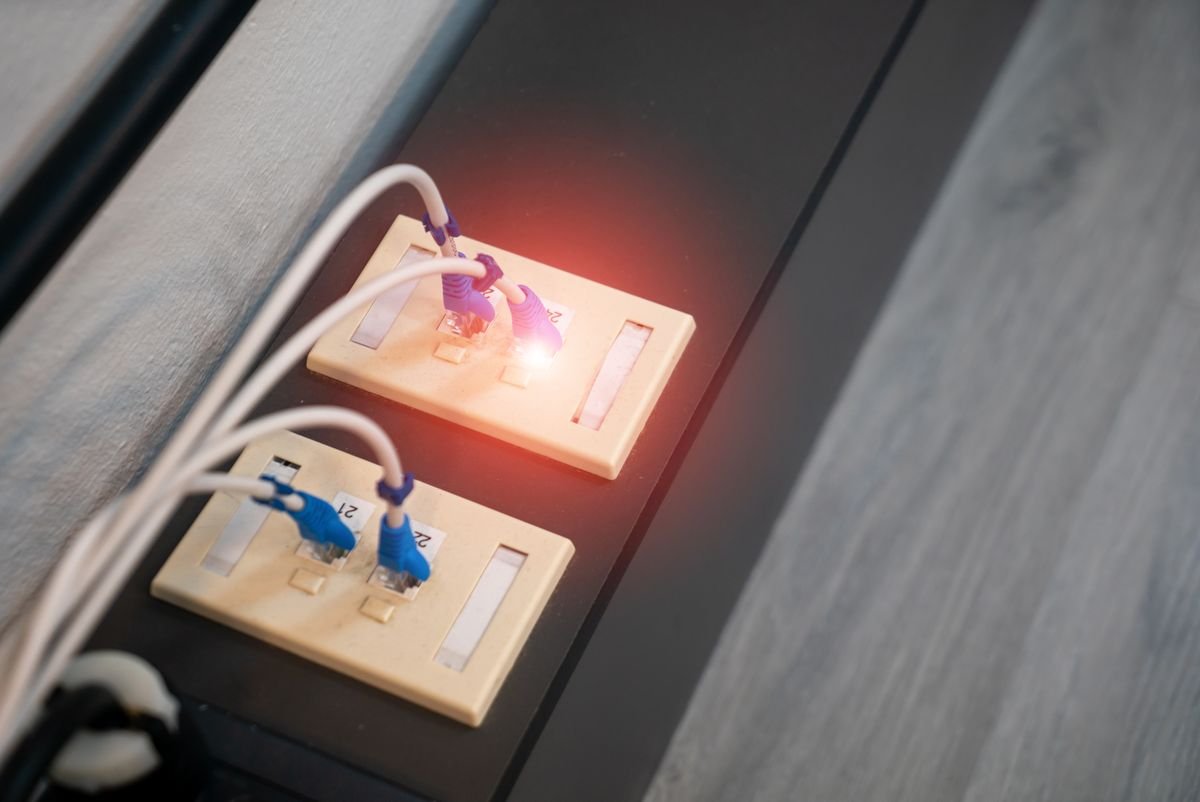
Plug the laptop directly into the router with an ethernet cable for an hour. If everything works perfectly on the cable, you have proven the problem is the wireless link, not the internet service and not the laptop itself. That points you back at bands, interference, and placement instead of drivers.
Reduce Interference and Improve Placement
Move the router to a central, open spot, ideally chest high and away from microwaves, baby monitors, thick concrete walls, and metal filing cabinets. The 2.4 GHz band reaches farther but picks up more interference, while 5 GHz is faster and cleaner at short range but fades through walls. Matching the band to the distance, as covered above, matters more than buying a bigger router.
When to Stop Troubleshooting and Get Help
There is a point where more settings will not help, and knowing it saves you hours. If the laptop drops wifi on every network you try, including your phone hotspot and a coffee shop, the wifi card itself is likely failing. A USB wifi adapter costs about $20 to $35 and bypasses the built in card completely, which is a cheap fix for an older laptop. If the laptop is still under warranty, contact the maker instead.
If every device in the house drops at the same time, call your internet provider and ask them to check the line and the modem. And if your router is more than five years old, needs weekly restarts, or runs hot to the touch, replacing it is the honest fix. A modern router with current firmware handles band steering far better than the models that caused most of these headaches.
Conclusion
So why does my wifi drop only on my laptop and not my phone? In almost every case, the laptop is the weak link: aggressive power saving puts the wifi card to sleep, a generic driver misbehaves after an update, the card bounces between wifi bands, or a corrupted saved network profile keeps tripping it up. Your phone avoids all of this with a simpler radio and gentler power rules.
The takeaways are simple. First, prove the fault is the laptop with the two minute multi device check. Second, try the five minute quick fixes, especially the full restart and the forget and reconnect. Third, on Windows, turn off the power saving option for the wifi adapter and install the driver from your laptop maker. Fourth, split your router bands and lock the laptop to the right one. Work through this list once, in order, and the mysterious laptop only drops should be gone for good.
Frequently Asked Questions
Why does my wifi disconnect only on my laptop but not my phone?
The laptop is almost always the cause. Windows power saving can switch the wifi card off, a generic driver can misbehave after an update, the card can bounce between the 2.4 GHz and 5 GHz bands, or the saved network profile can be corrupted. Phones use simpler radios with gentler power rules, so they stay connected through conditions that trip up a laptop.
Why does my laptop lose wifi every time it wakes from sleep?
Sleep puts the wifi card into a deep low power state, and some cards fail to wake cleanly. Turn off the Allow the computer to turn off this device to save power option in Device Manager, update the wifi driver from your laptop maker, and the wake up drops usually stop.
Should I use 2.4 GHz or 5 GHz on my laptop?
Use 5 GHz when the laptop is in the same room as the router or one room away, since it is faster and less crowded. Use 2.4 GHz when you are far from the router or behind several walls, since it travels farther. Give the bands different network names on the router so you can choose instead of letting the router guess.
Can a VPN make my laptop drop wifi?
A VPN does not usually break the wifi signal itself, but a misconfigured VPN or security suite can block traffic in a way that looks exactly like a dropped connection. If drops started when you installed one, disconnect the VPN for a test session. If the drops stop, update or reinstall the VPN software.
Will buying a new router fix my laptop wifi drops?
Only if the router is part of the problem. If the laptop drops on every network, a new router changes nothing and the laptop needs the driver and power fixes above. If only your home network is affected and the router is old or needs constant restarts, a modern router with current firmware is a sensible upgrade.
