

You are in the middle of an important call when your own voice comes back at you a half second later. Every word you say returns as a faint repeat, and the conversation turns into a struggle. Learning how to fix echo on phone calls Android users face every day starts with one surprising fact. In most cases the problem is not your phone at all. It is the phone on the other end of the call.
Echo happens when sound from a speaker finds its way back into a microphone and travels around the call a second time. Your voice leaves your phone, plays through the other person speaker, gets picked up by their microphone, and returns to your ear as a delayed repeat. The same loop can start on your side too, when your speaker is loud and your microphone sits close to it. The good news is that most echo has a simple cause, and a short series of tests will show you exactly where it starts. Work through the fixes below in order, and test with a short call after each one. Most people find the answer before they reach the end of the list.
What Causes Echo on Android Phone Calls
An echo is a feedback loop, and every loop needs three parts. A speaker plays sound, a microphone picks that sound up, and the call carries it back. Break any one of those three parts and the echo stops. That is why the fixes in this guide work. They either quiet the speaker, move the microphone away from the sound, or clean up the connection that carries the call.
Speakerphone is the most common cause by far. When the other person uses speakerphone, their microphone hears their own speaker and sends your voice straight back to you. A loud call volume does the same thing on a smaller scale. A phone case that covers the microphone or reflects sound toward it can add echo too. Poor signal and wifi calling can create a different kind of repeat, where delayed audio packets arrive out of order and sound like an echo. Old software, a glitch in the phone app, and call recording features can also confuse the audio path. Hardware faults are the rarest cause, and they are the last thing to check, not the first.
How to Fix Echo on Phone Calls Android With a Quick Test First
Before you change any setting, run a 60 second test that tells you whose phone is causing the echo. Call a friend or family member and ask them a simple question. Who hears the echo, you or them? If you hear your own voice but they hear you clearly, the echo is coming from their side of the call. If they hear their own voice coming back, the echo is coming from your side. This one question saves you from fixing the wrong phone.
Next, ask the other person to turn off speakerphone and hold the phone to their ear. If the echo vanishes instantly, you have found the cause and the fix is done. If the echo stays, ask them to lower their call volume by a few steps. Then switch roles and try the same two changes on your own phone. Note which change makes a difference, because it points straight at the real cause. If neither side changes anything and the echo stays exactly the same, move on to the network and software fixes below, because the cause is more likely a connection or app problem.
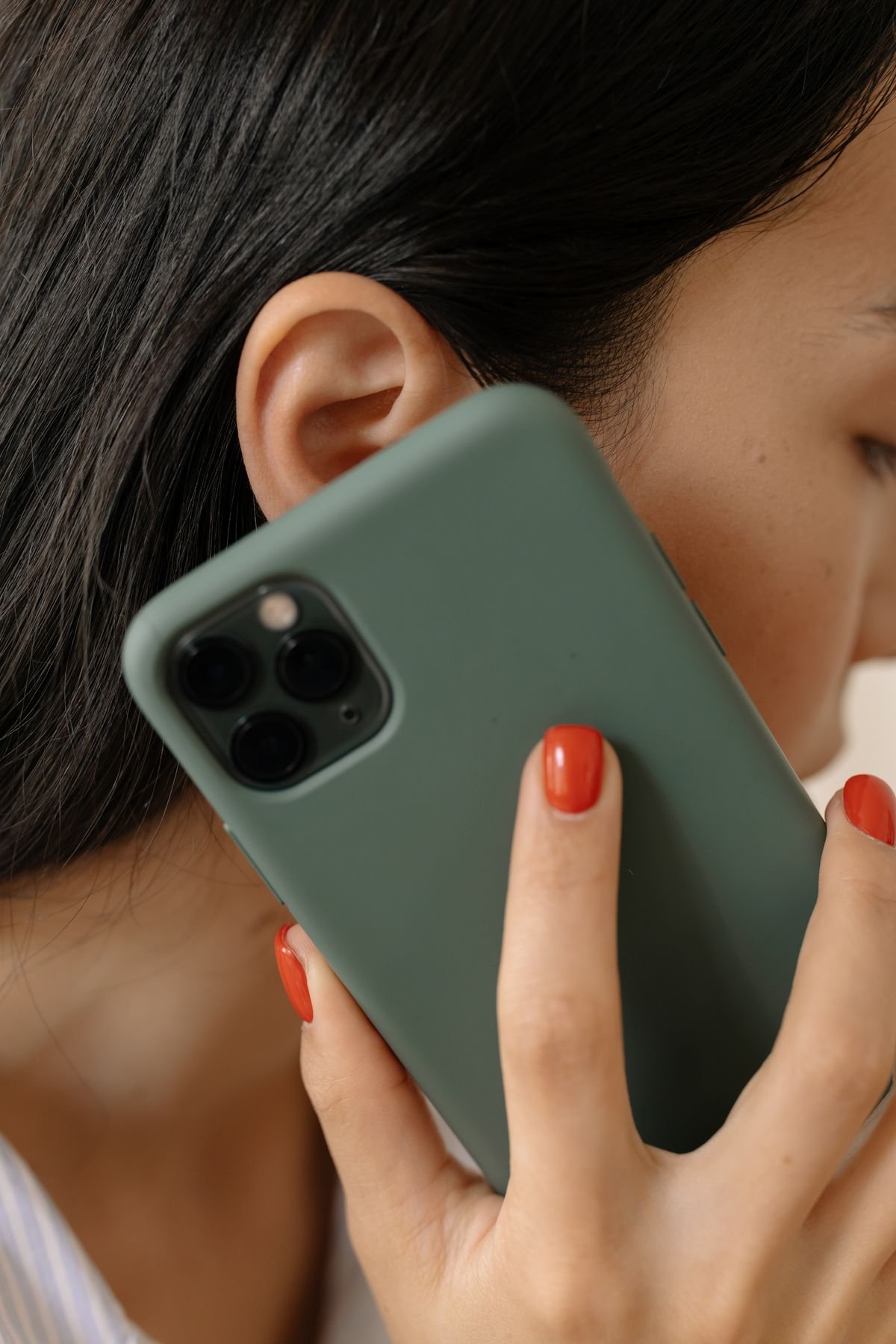
Ask the Other Person to Turn Off Speakerphone
Speakerphone is the number one source of echo on Android calls, and it is also the easiest to fix. A phone speaker sits only a few inches from its own microphone. When the speaker is loud, the microphone hears the caller voice and sends it back down the line. The result is a clear repeat of everything you say, usually about a half second behind your real voice.
Ask the other person to tap the speaker button to turn speakerphone off and hold the phone to their ear. In most cases the echo stops the moment they do. If they need to keep their hands free, a wired headset or a pair of Bluetooth earbuds breaks the loop just as well, because the sound goes into their ear instead of into the room. When you are the one on speakerphone, turn it off on your side and test again. This single change solves the majority of echo complaints, so always try it before you touch any setting.
Lower the Volume and Remove the Case
If the echo stays after speakerphone is off, volume is the next thing to check. A call volume set to maximum can still leak from the earpiece into the microphone, especially in a quiet room. Lower your call volume two or three steps during a live call and ask the other person if the repeat fades. You can also ask them to lower their volume the same amount. Small changes here make a real difference, because the feedback loop depends on the speaker being loud enough for the microphone to catch it.
Then take your phone case off and make a test call. Some cases, especially thick or stiff ones, cover part of the microphone hole or bounce sound back toward it. A case that fits badly can also press against the phone and change how sound travels around the edges. If the echo clears up with the case off, the case is the cause. Switch to a slimmer case with a proper cutout for the microphone, or leave the case off for calls. This is a quick test that costs nothing and rules out a surprisingly common cause.
Switch to a Headset or Wired Earbuds
A headset is the fastest way to break an echo loop on your side of the call. When you wear earbuds or headphones, the caller voice goes straight into your ears and never reaches your microphone. The loop has nowhere to start. Plug in a wired headset and make a test call. If the echo is gone, your phone speaker and microphone were feeding back into each other, and the headset is a solid fix while you work through the other steps.
Bluetooth headsets work the same way, but a weak or unstable Bluetooth connection can add its own audio problems. If you use Bluetooth earbuds and the echo appears only with them, disconnect the earbuds and test with the phone earpiece instead. That tells you whether the headset or the phone is at fault. Our guide to Bluetooth headphones that keep disconnecting from a laptop covers the same kind of connection troubleshooting, and many of the same steps apply to a phone. If your earbuds keep slipping out during calls, our tips on earbuds falling out when running without ear hooks can help you get a fit that stays put while you talk.
Turn Off Wifi Calling and Test Again
Wifi calling routes your voice over the internet instead of the mobile network, and a weak or busy wifi connection can delay the audio enough to sound like an echo. If the echo started after you connected to a new wifi network, or if it only happens at home or at the office, wifi calling is a strong suspect. Turn it off for one test call and see if the echo clears.
On most Android phones you can find the setting under Settings, then Connections or Network and Internet, then Wifi Calling. Toggle it off, make a test call over the mobile network, and compare the sound. If the call is clear without wifi calling, the problem is your wifi connection, not your phone. Restart your router, move closer to it during calls, or keep wifi calling off in that location. Our guide on why a TV keeps disconnecting from wifi walks through the same kind of wifi stability checks, and the router restart and signal tips there apply to phone calls too. If the echo stays the same with wifi calling off, turn it back on and move to the next fix.

Restart the Phone and Update the Software
A simple restart clears temporary glitches in the audio system that can cause echo. Press and hold the power button, tap Restart, and wait for the phone to come back. Make a test call before you open any other app, so a background app cannot interfere with the result. This sounds too simple to work, but audio routing bugs are one of the most common things a restart fixes.
While you are at it, check for software updates. Phone makers regularly fix call audio bugs in system updates, and an old version can carry a known echo problem that a newer version already solves. Go to Settings, then Software Update or System Update, and install anything that is waiting. Also update the Phone app itself from the Play Store, since call audio is handled there on many Android phones. After the update, restart once more and test again.
Clear the Phone App Cache and Check Call Recording
If the echo appears in every call no matter who you talk to, the Phone app itself may be the cause. A damaged cache can make the app process audio badly, and clearing it is safe because it deletes no contacts or call history. Go to Settings, then Apps, then Phone, then Storage, and tap Clear Cache. Do not tap Clear Data, which would reset the app settings. Open the Phone app again and make a test call.
Call recording is another setting worth checking. Several Android users have reported echo that started when call recording was turned on, because the recording feature changes how audio flows through the phone. Open the Phone app, tap the three dot menu, go to Settings, then look for Call Recording or Record Calls. If auto recording is on, turn it off and test again. If the echo stops, you can keep recording off or try a different recording app that handles audio more cleanly.
Reset Network Settings
When echo follows you across different locations and different callers, the network settings on your phone may be at fault. A reset restores the mobile, wifi, and Bluetooth settings to their defaults and clears any bad configuration that survived updates or carrier changes. This is a bigger step than the ones above, so save it for when the quick fixes have not worked.
On most Android phones the option sits under Settings, then General Management or System, then Reset, then Reset Network Settings. The phone will forget saved wifi networks and Bluetooth pairings, so have your wifi password ready before you start. After the reset, reconnect to your wifi, pair your headset again if you use one, and make a test call. If the echo is gone, a stale network setting was the cause. If it stays, only a factory reset or a hardware check is left, and both are covered below.
When Echo Means a Hardware Problem
Hardware is the last suspect, and the signs are clear. Echo that survives a factory reset, appears on every call, and stays the same with and without a headset points to a physical fault. The most common culprits are a damaged microphone, a faulty earpiece speaker, or water damage that changed how sound moves inside the phone. A phone that was dropped or got wet shortly before the echo started is a strong hint in this direction.
Before you book a repair, back up your photos, contacts, and messages, then run a factory reset from Settings. Set the phone up as a new device without restoring apps first, and make a test call. If the echo is still there on a clean phone with no apps installed, the problem is hardware and no setting will fix it. Contact your carrier or the phone maker for a repair quote. If the phone is still under warranty, describe the echo clearly and mention that it survives a factory reset, because that points the repair team straight at the hardware.
How to Stop Echo From Coming Back
Once your calls are clear, a few small habits keep them that way. Keep speakerphone for short calls in quiet rooms only, and use a headset for long calls or noisy places. Keep your call volume at a comfortable level instead of maximum. Clean the microphone hole gently with a soft brush now and then, because dust and lint can change how the microphone picks up sound. Install software updates when they arrive instead of putting them off for months. And if you use call recording, test it after each update to make sure it is not adding echo again. These habits take seconds, and they stop the most common causes before they start.
Conclusion
Learning how to fix echo on phone calls Android users deal with comes down to one idea. Echo is a loop, and you only need to break it in one place. Start by finding out whose phone is causing it, then turn off speakerphone, lower the volume, and test with a headset. If the echo is still there, check wifi calling, restart the phone, update the software, clear the Phone app cache, and turn off call recording. A network settings reset handles the stubborn cases, and a factory reset tells you whether the problem is hardware. Work through the list in order and test after each step. Most echo disappears in the first three fixes, and the rest of the list is there for the calls that need a little more patience.
Frequently Asked Questions
Why do I hear my own voice echoing on Android calls?
You usually hear your own voice because the other person is on speakerphone. Their microphone picks up your voice from their speaker and sends it back to you. Ask them to turn speakerphone off or use a headset, and the echo normally stops at once.
How do I stop echo on phone calls on Android quickly?
Turn off speakerphone on both phones, lower the call volume a few steps, and restart your phone. Those three steps fix most echo in under two minutes. If the echo stays, turn off wifi calling and test again.
Can wifi calling cause echo on Android?
Yes. A weak or busy wifi connection can delay voice packets enough to sound like an echo. Turn wifi calling off for one test call. If the call is clear on the mobile network, restart your router or keep wifi calling off in that location.
Does a phone case cause echo during calls?
It can. A thick case or one that fits badly may cover the microphone hole or bounce sound back toward it. Take the case off and make a test call. If the echo clears, switch to a slimmer case with a proper microphone cutout.
When should I get my Android phone repaired for echo?
Get it repaired when the echo survives a factory reset, happens on every call, and stays the same with and without a headset. That pattern points to a damaged microphone or speaker. Mention the factory reset test to the repair team, since it shows the cause is hardware.
