

The fan started screaming halfway through the movie. I was working from bed on a cold evening, laptop sunk into the comforter, a blanket pulled up around me, and the machine underneath was getting hotter by the minute. The base burned my legs through the blanket. The video stuttered. Then the laptop shut itself off without warning, and I lost twenty minutes of unsaved notes. I had done everything wrong at once: soft surface, blocked vents, heavy workload, and no airflow at all.
If you want to know how to keep a laptop cool on a bed without a cooling pad, the good news is that you do not need to buy anything. Most bed overheating comes from one simple problem. Soft bedding blocks the vents and traps hot air underneath the machine. Fix the airflow, reduce the workload, and adjust a few settings, and a laptop that used to burn your legs can run cool and quiet again.
This guide walks through why beds are so hard on laptops, the fastest free fixes in order, the settings that make the biggest difference, and a simple routine you can repeat every time you work from bed. It also covers the warning signs that mean the problem is bigger than bedding, and the moment to stop and get the machine checked.
Why a Laptop Overheats on a Bed
A laptop cools itself by pulling cool air in through vents, usually on the bottom or the sides, and pushing hot air out through an exhaust. That system only works when air can move freely. A mattress, a comforter, or a pillow does the opposite. It molds around the laptop, seals off the bottom vents, and insulates the machine like a blanket wrapped around a heater.
Heat then builds in a loop. The processor gets hot, the fan spins faster to compensate, but the hot air has nowhere to go, so it pools underneath and gets pulled back in. Temperatures climb, the processor slows itself down to avoid damage, and your video stutters or your game drops frames. Leave it long enough and the laptop shuts down to protect itself, which is what happened to my unsaved notes.
You do not need more fan power to break this loop. You need a clear path for air and a smaller heat load. Every fix in this guide does one of those two things, and the best ones do both at once.
The Fastest Fix: Give the Vents Room to Breathe
The single most effective change costs nothing. Get the laptop off the soft surface and onto something firm and flat. Even a small gap underneath the machine lets cool air reach the intake vents and lets hot air escape instead of pooling against the bedding.
Look around the house before you buy anything. A large hardcover book, a chopping board, a baking tray, or a breakfast tray all work as a firm base. A lap desk is ideal if you already own one, because it is flat on top and keeps blankets away from the vents. What matters is that the base is rigid, flat, and larger than the laptop, so no vent hangs over a soft edge.
Position matters too. Point the exhaust, usually on the side or the back, toward open air, not toward a pillow or a wall. Keep blankets off the machine entirely. If you like working under a blanket, tuck it around your waist and leave the laptop outside it. A laptop that sits on a firm board with clear vents will run noticeably cooler within minutes, and the fan will usually quiet down as well.
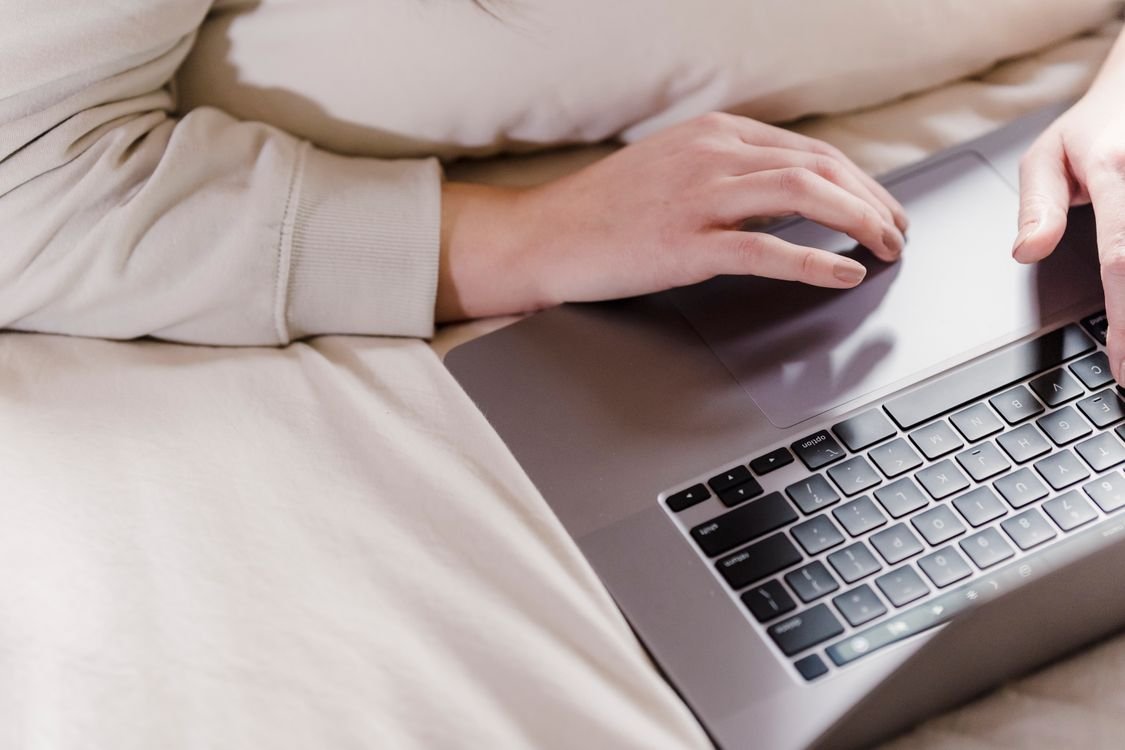
How to Keep a Laptop Cool on a Bed Without a Cooling Pad
Once the laptop is on a firm surface, work through these steps in order. Each one lowers the temperature a little further, and together they usually solve the problem completely.
Close what you are not using
Every open app adds heat. Browser tabs are the worst offenders, especially video streaming, social media feeds, and pages that auto play video. Close tabs you are not reading, quit apps you opened hours ago and forgot about, and pause any downloads or updates until you are back at a desk. On most laptops you can check which apps are using the most processor power in the system task manager, and closing the top one or two often drops the temperature more than any other single change.
Switch to a balanced or power saver mode
Most laptops have a power mode setting, and many people run theirs on high performance without realizing it. High performance mode keeps the processor running fast even for light work, which generates heat for no benefit. Switch to balanced mode for everyday work, or power saver mode when you are only writing, reading, or watching video. The difference in speed is barely noticeable for light tasks, but the difference in heat is immediate. You can find the setting in the battery menu on Windows and in the battery section of System Settings on a Mac.
Lower the screen brightness
The screen is one of the biggest heat sources in a laptop, and it is also one of the easiest to turn down. Drop the brightness to a comfortable level rather than maximum, especially in a dim bedroom where maximum brightness is unnecessary. This saves battery too, which means less charging heat on top of everything else.
Take short breaks and let it idle
If you are working for hours, give the machine a rest every hour or so. Close the heavy apps, leave the laptop on its firm surface with the lid open, and let it idle for five minutes. Idle time lets the internal temperature fall back toward room temperature, and it breaks the slow climb that leads to throttling and shutdowns. Think of it like letting a car engine cool before a long climb: a short pause now prevents a forced stop later.
Keep the room cool and the air moving
A hot, stuffy bedroom makes every other fix harder. Open a window if you can, or point a room fan so air moves across the laptop rather than at you. Even a gentle breeze helps, because it carries exhaust heat away instead of letting it pool around the machine. Avoid working with the laptop inside a blanket fort or under a duvet, no matter how cozy it feels, because that is the fastest way back to overheating.
Clean the Vents if the Laptop Still Runs Hot
If the laptop still runs hot on a firm surface with light apps and power saver mode, dust may be blocking the vents from the inside. Beds are dusty places, and a laptop used in bed collects lint and fibers faster than a desk machine.
With the laptop switched off and unplugged, clear the vents from the outside using short bursts of compressed air, holding the can upright and keeping it a few inches away. Do not blow dust deeper into the machine, and do not open a sealed laptop to clean inside unless you know what you are doing and your warranty allows it. A quick external clean every few months keeps airflow strong, and it is especially important for laptops that live on beds and sofas.
Also check the simple things. A case that covers the vents, a skin that seals the bottom, or a sticker over an intake slot can all choke airflow. Remove anything that covers a vent, and keep the bottom of the laptop clear whenever it is running.
Comfort Counts Too: Posture and Heat on Your Legs
A laptop that runs cooler is also more comfortable to use in bed, but posture still matters. A firm board or lap desk raises the screen slightly and stops the machine from sliding into your lap, which helps your neck and wrists as well as the temperature. If you work from bed often, an adjustable stand that holds the laptop at a better angle is a worthwhile upgrade, and it improves airflow at the same time.
Never work with a hot laptop directly on bare skin for long periods. Prolonged heat on the legs is uncomfortable and can irritate the skin over time. If the base still feels very hot after all the fixes above, that is a warning sign, not a comfort problem, and the next section explains what to do about it.
When to Stop and Get the Laptop Checked
Most bed overheating is fixed by airflow and settings, but some problems are not. Stop and book a check if the laptop shuts down even on a hard surface with light apps, if the fan stays loud at idle, if the battery looks swollen or the case feels warped, or if you smell burning or see smoke. A swollen battery is a safety issue: stop using the laptop, do not charge it, and take it to a repair shop promptly.
Repeated heat shutdowns stress internal parts, so do not keep pushing through them. A professional clean or a fan replacement costs far less than a dead processor, and it is the right call when the free fixes have stopped helping. For more laptop care, see why a laptop gets hot and shuts down and why a TV keeps disconnecting from wifi for help with the wireless side of a home setup.

A Simple Routine for Working From Bed
Put it all together into a routine you can repeat without thinking. First, place a firm board under the laptop and confirm the vents and exhaust are clear. Second, close heavy apps you are not using and switch to a balanced or power saver mode. Third, keep the blanket off the machine and the exhaust pointed at open air. Fourth, take a short break every hour or so, letting the laptop idle on a hard surface. If the fan stays loud or the underside stays very hot after these steps, clean the vents or get the cooling system checked.
Conclusion
Learning how to keep a laptop cool on a bed without a cooling pad comes down to two ideas: give the air somewhere to go, and give the processor less work to do. A firm surface under the machine, clear vents, closed tabs, and a sensible power mode solve most bed overheating completely, and they cost nothing. Clean the vents when the free fixes stop working, and get the machine checked when shutdowns continue on a hard surface. Work this way and bed becomes a perfectly safe place to use a laptop, instead of the place where it overheats.
Frequently Asked Questions
Is it bad to use a laptop on a bed? It is only bad when the bedding blocks the vents. On a firm board with clear airflow, a laptop runs just as cool in bed as it does at a desk.
Do I need a cooling pad for bed use? No. A firm flat surface, closed background apps, and a balanced power mode usually achieve the same result. A cooling pad helps in extreme cases, but it cannot fix blocked vents on its own.
Why does my laptop shut down on a bed? Heat builds up because soft bedding traps hot air under the machine. The processor slows down first, and if temperatures keep climbing, the laptop shuts down to protect itself.
Can a laptop on a bed damage the battery? Sustained high heat ages a battery faster and can shorten its life. Keeping the machine cool protects the battery as well as performance.
What is the fastest way to cool a hot laptop? Lift it onto a hard flat surface at once, close heavy apps, and switch to power saver mode. The temperature usually drops within a few minutes.
