
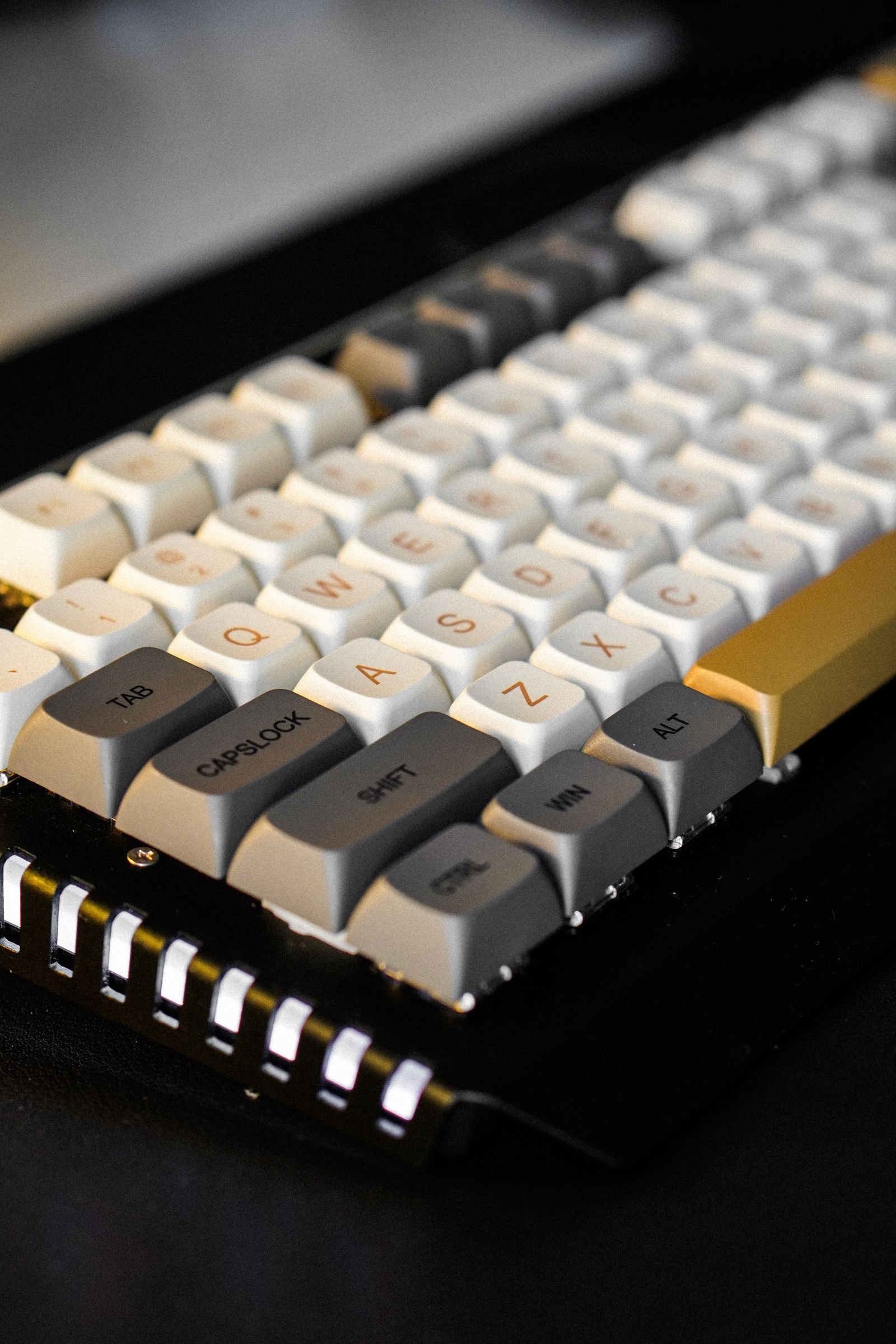
Maya had thirty minutes left before her deadline. She was a freelance writer in Austin, Texas, finishing a client article on her laptop, when the letters on her screen started going wrong. The word letter came out as letteer. Then password became passwoord, and her login failed three times in a row. She pressed each key once, carefully, and still got two letters. She was not typing badly. Her keyboard was.
If your screen looks like that right now, you already know how maddening it is. You type a sentence and have to go back and delete half the letters. Passwords fail. Search boxes fill with doubled letters. Code breaks. And the worst part is that it feels random, because some keys double and others work fine. Learning how to fix a keyboard that types double letters is mostly about finding out whether the cause is software or hardware, because the fix for one will do nothing for the other. This guide walks you through that test first, then gives you seven fixes in order, from the free settings change that takes two minutes to the switch swap that saves a good mechanical keyboard.
Three points matter most here. First, most double typing is a settings problem or dirt under one key, and both are free to fix. Second, you should test before you change anything, so you do not waste an afternoon fixing the wrong thing. Third, a keyboard that doubles letters after a spill or a drop is a different problem from one that started doubling out of nowhere, and this guide covers both.
What Double Typing Actually Is
When you press a key once and two letters appear, one of two things is happening. The first is switch chatter. Inside every key is a switch that closes a contact when you press it. Metal contacts do not close cleanly. They bounce open and shut for a few milliseconds before they settle, and the keyboard firmware waits out that bounce before it reports a press. That waiting step is called debouncing. When a switch wears out, gets dirty, or gets wet, the bounce lasts longer than the wait, and the keyboard reports a second press. That is hardware.
The second cause is key repeat. Your operating system is designed to repeat a letter when you hold a key down. If the repeat delay is set too short, a normal press that lingers for a fraction of a second too long counts as a held key, and you get a second letter. That is software, and it is the most common cause on laptops, where the keys are shallow and the repeat timing is easy to get wrong.
There are two other causes worth knowing about. A loose USB connection or a weak wireless signal can send the same press twice, and a bad driver can misread input. Both are less common than the first two, but both are quick to rule out, and this guide covers them too.
How to Fix a Keyboard That Types Double Letters: Start With the 5 Minute Test
Before you change a single setting, run this test. It takes five minutes and it tells you which half of this guide you actually need.
Open a plain text editor like Notepad on Windows or TextEdit on Mac. Press the key that doubles, once, sharply, and let go completely. Do it thirty times, slowly, and count how many times it prints twice. Then type a normal sentence at your usual speed and watch what happens. Now open a different program, a browser address bar for example, and repeat the test there.
Here is how to read the results. If one key doubles in every program and it doubles on sharp single taps, the problem is almost certainly that key switch. If several keys double only when you type fast, and sharp single taps are clean, the problem is almost certainly the repeat delay setting. If the doubling happens in only one program, the problem is that program, not your keyboard. And if the doubling follows the keyboard to another computer, the keyboard is the problem. If it stays behind on the first computer, the computer settings are the problem.
One more check is worth doing while you are here. Try a different USB port, or unplug a wireless receiver and plug it back in. A loose connection can look exactly like a failing switch, and this thirty second check has saved many people from buying a keyboard they did not need. If your laptop also runs hot while you type, heat can make input problems worse, so it is worth reading our guide on why a laptop gets hot and shuts down before you decide the keyboard is dying.

Fix 1: Slow Down the Key Repeat on Windows
If your test pointed at repeat timing, start here. This is the most common fix, it takes two minutes, and it solves the problem for a large share of Windows users.
Press the Windows key and R at the same time, type control keyboard, and press Enter. A small Keyboard Properties window opens. On the Speed tab you will see two sliders. Move Repeat delay toward Long, and move Repeat rate toward Slow. Click Apply and test in the small box on that same window. Type the letter that was doubling and see if it stays single.
The right setting is a personal thing. If you set the delay too long, holding a key to delete a line of text will feel slow. If you set it too short, the doubling comes back. Most people find the sweet spot with the delay slider about two thirds of the way toward Long and the rate slider near the middle. Change one slider at a time and test after each change, so you know which one fixed it.
If the doubling stops, you are done. Do not keep changing things. If it only improves a little, move on to Fix 2, because the two settings work well together.
Fix 2: Turn On Filter Keys on Windows
Filter Keys is a Windows accessibility feature that ignores brief or repeated keystrokes. It was built for people who press keys by accident, but it is also one of the best tools for double typing, because it catches the extra press before it reaches your document.
Open Settings, then Accessibility, then Keyboard. Turn on Filter Keys. Click into its settings and choose Ignore quick keystrokes, which is sometimes labeled Bounce Keys. Set the shortest interval you can live with, usually around half a second, and test it in a text editor. Type normally for a minute and watch whether the doubles disappear.
Filter Keys can feel strange at first. It may swallow a genuine fast double tap, like the double letter in the word letter when you type quickly, so if you are a fast typist, set the interval as short as you can. Think of it as a stopgap that makes the keyboard usable today, while you decide whether the switch itself needs attention. It is not a repair, but for many people it is the difference between a usable keyboard and a ruined afternoon.
Fix 3: Slow Down Key Repeat on a Mac
Mac users get the same problem, and the fix is in the same place you would expect. Open System Settings, then Keyboard. You will see two sliders: Delay Until Repeat and Key Repeat Rate. Move Delay Until Repeat toward Long and Key Repeat Rate toward Slow, then test in a text editor.
The Mac setting behaves a little differently from Windows. On a Mac, the repeat rate also affects how fast a held key cycles through characters, so if you hold a key to type a row of the same letter, it will feel slower. That is a fair trade for clean typing. If you use an external keyboard with your Mac, change the settings while that keyboard is connected, because macOS keeps separate repeat settings for the built in keyboard and an external one.
If your Mac is a laptop and the doubling started after a spill, skip ahead to Fix 4, because no setting will fix residue under a key. Laptop keyboards are shallow, and even a small amount of dried coffee or soda under a key can make the contact bounce.

Fix 4: Clean Around the Key That Doubles
Dust and crumbs are the leading cause of switch chatter on desktop keyboards, and the fix is simple. Unplug the keyboard first. Turn it upside down and tap it gently to shake loose crumbs. Then hold a can of compressed air upright and give short bursts around the key that doubles, pressing the key down while you blow so the air reaches under it. Press the key thirty to fifty times afterward to work any remaining debris out of the contact.
If you have a mechanical keyboard, pull the keycap off with a keycap puller and blow air directly into the switch. A small soft brush helps with stubborn lint. If the doubling started after a spill, dampen a cotton swab with isopropyl alcohol, wipe around the switch, and let it dry completely before you plug the keyboard back in. Never spray liquid cleaner into a powered keyboard, and never use a household vacuum on a keyboard, because vacuums can build up static that damages the electronics.
For laptop keyboards, do not remove keycaps unless you know the model allows it, because laptop keycaps break easily and are hard to replace. Use short bursts of compressed air at an angle across the key, wipe the surface with a dry microfiber cloth, and test again. If you want a deeper clean for a desktop board, our guide to cleaning a mechanical keyboard without removing keycaps covers the full process step by step.
Fix 5: Update or Reinstall the Keyboard Driver
A bad driver can misread input, and driver problems often start right after a Windows update. If your doubling began after an update, this fix is worth trying before you touch any hardware.
On Windows, right click the Start button and open Device Manager. Expand Keyboards, right click your keyboard, and choose Update driver, then let Windows search automatically. If that finds nothing, right click the keyboard again and choose Uninstall device, then restart your computer. Windows will install a fresh driver on startup. Test the doubling after the restart.
Wireless keyboards deserve one extra check. Open the settings for your keyboard maker software, if you have it, and check for a firmware update. Logitech G Hub, Razer Synapse, Corsair iCUE, and Keychron Launcher all offer firmware updates that sometimes fix chatter directly, because the maker has improved the debounce timing in a newer version. While you are there, replace the batteries or charge the keyboard, because a low battery can cause a wireless keyboard to repeat presses.
Driver and connection trouble can show up on other devices in your home too. If your TV keeps dropping its connection at the same time your keyboard misbehaves, the cause may be your home network rather than any single device, and our guide on why a TV keeps disconnecting from WiFi walks through the router checks that fix both kinds of problem.
Fix 6: Raise the Debounce Time in Firmware
If cleaning did not help and the settings did not help, the switch itself is bouncing longer than the firmware expects. On many gaming and mechanical keyboards you can fix this without opening anything, by telling the firmware to wait a little longer before it reports a press.
Open your keyboard maker software and look for a debounce setting. On keyboards that run QMK or VIA firmware, the debounce time is a number you can raise by a few milliseconds. Try raising it by 5 milliseconds at a time and test after each change. A small increase is usually enough to hide the bounce of a slightly worn switch, and it will not slow your typing in any way you can feel.
Not every keyboard exposes this setting. If yours does not, a small free utility that filters presses of the same key arriving within a few milliseconds of each other can do the same job from inside Windows. Search for keyboard chattering fix to find one, and treat it as a stopgap while you decide on a repair. It costs nothing and it can keep a good keyboard in service for months.

Fix 7: Swap or Replace the Switch
If one key still doubles after everything above, the switch is worn out, and the fix is to replace it. On a hot swappable mechanical keyboard this is a five minute job. Pull the keycap, pull the switch out with a switch puller, and push a new switch of the same type into the socket. Test the key before you put the keycap back on. A single replacement switch costs very little, and many keyboard makers sell them in small packs.
On a soldered board, replacing a switch means using a soldering iron, which is a repair, not a quick fix. If you are comfortable soldering, desolder the faulty switch, solder in a new one, and test it. If you are not, take the board to a repair shop and ask for a quote, because a shop can often swap one switch for less than the cost of a new keyboard. Chatter that spreads across many keys usually means the whole board is old or was exposed to humidity, and at that point replacing the keyboard is more practical than replacing every switch.
Laptop keyboards are a different case. The switches are part of the laptop, and replacing one key usually means replacing the whole keyboard assembly. Get a quote before you decide. On an older laptop, a good external keyboard can be the cheaper answer, and it often types better than the built in one anyway.
When to Stop Fixing and Replace the Keyboard
Stop and replace the keyboard when three or more keys double at once, when the doubling comes back within days of every fix, or when the keyboard has been through a major spill. Those signs point to damage across the board, not one tired switch. Also replace it when the cost of repair passes half the price of a new keyboard, because a repaired board with several worn switches will usually develop the same fault on the next key within months.
Before you buy, test the new keyboard the same way you tested the old one. Open a text editor in the store if you can, or test it at home on the first day and keep the receipt. Press each key sharply thirty times and type a fast paragraph. A new keyboard should print every press exactly once, and if it does not, return it right away rather than trying to fix a fault that came from the factory.
How to Keep Double Typing From Coming Back
Most double typing starts with dirt, so keep food and drinks away from the keyboard and give it a quick clean every month. Turn it upside down and tap it, blow out the dust, and wipe the keycaps with a dry cloth. If you eat at your desk, a keyboard cover costs very little and stops crumbs from reaching the switches at all.
Keep your repeat settings where you set them. Windows updates sometimes reset keyboard settings, so if doubling returns after an update, check the repeat delay first before you assume the hardware failed. And keep the firmware updated on a mechanical keyboard, because makers keep improving debounce handling, and a firmware update is the cheapest repair there is.
Conclusion
Learning how to fix a keyboard that types double letters comes down to one test and seven fixes. Test first to find out whether the cause is hardware or software, then work through the fixes in order. Slow the repeat delay, turn on Filter Keys, clean the key, update the driver, raise the debounce time, and swap the switch if you have to. Most people stop at Fix 1 or Fix 4, and their keyboard is back to normal in minutes.
Maya fixed hers with Fix 1. She moved the repeat delay slider two notches toward Long, typed her password once, and logged in on the first try. She finished the article with ten minutes to spare. Her keyboard was not broken. It was just set too fast for her fingers, and a two minute change was all it needed. Yours may be the same, and now you know how to find out.
Frequently Asked Questions
Why does my keyboard type double letters all of a sudden?
The most common causes are a repeat delay set too short, dirt under one key, or a worn switch that bounces. Run the five minute test in this guide to find out which one it is. If it started after a Windows update, check the driver first. If it started after a spill, clean the key first.
Can I fix double typing without opening the keyboard?
Yes, in most cases. Slow the repeat delay in your operating system settings, turn on Filter Keys on Windows, and clean around the key with compressed air. Those three steps fix the large majority of cases without removing a single keycap.
Is double typing a software or hardware problem?
It can be either, and the test tells you which. If the doubling follows the keyboard to another computer, it is hardware. If it stays on the first computer when you plug in a different keyboard, it is software. If only one key doubles on sharp single taps, it is almost always that key switch.
Will Filter Keys slow down my typing?
It can, a little, if you set the interval too long. It may swallow a genuine fast double tap, like the double letter in a word you type quickly. Set the interval as short as you can while the doubling stays away, and treat Filter Keys as a stopgap while you fix the real cause.
Should I replace my keyboard or repair it?
Repair it when one key doubles and the board is otherwise good, especially if it is hot swappable. Replace it when three or more keys double, when the fault returns within days of every fix, or when the repair costs more than half the price of a new keyboard.
